Creating a show
This guide takes you through setting up a new show from scratch: the show itself, its sections and classes, and the awards (cups, trophies and so on) that go with it. You don't need to know anything about the system to follow it. Just take it a step at a time.
As an example, we'll set up the Market Snodsbury Summer Show. Market Snodsbury is the Worcestershire town near Aunt Dahlia's Brinkley Court, in P.G. Wodehouse's Right Ho, Jeeves. The show has three sections (Fruit & Vegetables, Flowers and Home Produce), a few classes in each, and three awards. Your own show will be bigger, but the steps are just the same.
A word about how things fit together. A show is something that happens regularly, like "Market Snodsbury Summer Show". Each time it's held is an edition of the show, e.g. "Market Snodsbury Summer Show 2026". You set up the sections, classes and awards once, on the show, and then each new edition copies them. So the work in this guide only needs doing once, and after that you just tweak things from year to year.
It's a good idea to have your printed show schedule to hand before you start, as most of what you enter will come straight from it.
Before you start
Open the app in your web browser. If it's running on your own computer, the address is usually http://127.0.0.1:8000/. Otherwise use the address you've been given. Log in with the username and password you've been given. Only a system admin can add a new show, so if there's no + button on the home page, ask one to add the show and make you its show admin (see Administration).
Note that there are no Save buttons on most pages. When you type in a box, the change is saved as soon as you leave the box, by clicking somewhere else or pressing Tab. Ticking a checkbox or picking something from a drop-down list saves straight away.
Step 1: Add the show
The app opens on the Shows tab of the home page. If nobody has added a show yet, it looks like this:
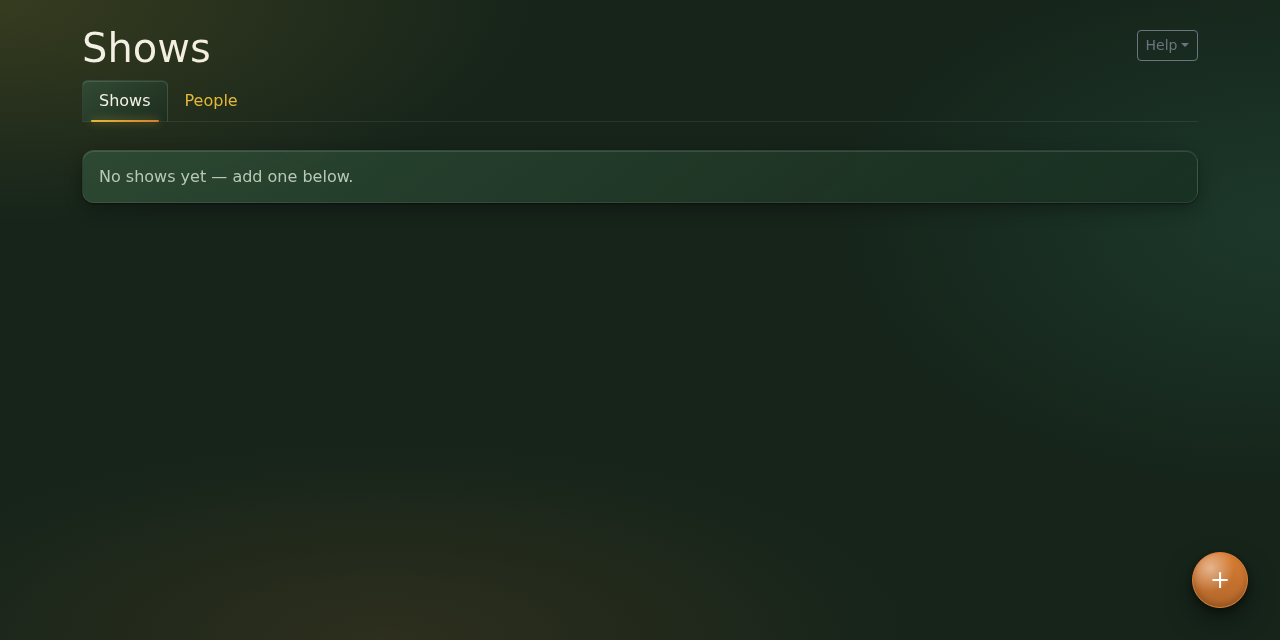
- Click the round + button in the bottom right corner.
- Fill in the Name, e.g. "Market Snodsbury Summer Show". Every show must have a different name.
- Fill in the Short name, e.g. "Summer Show". This is used where there isn't room for the full name.
- Click Save.
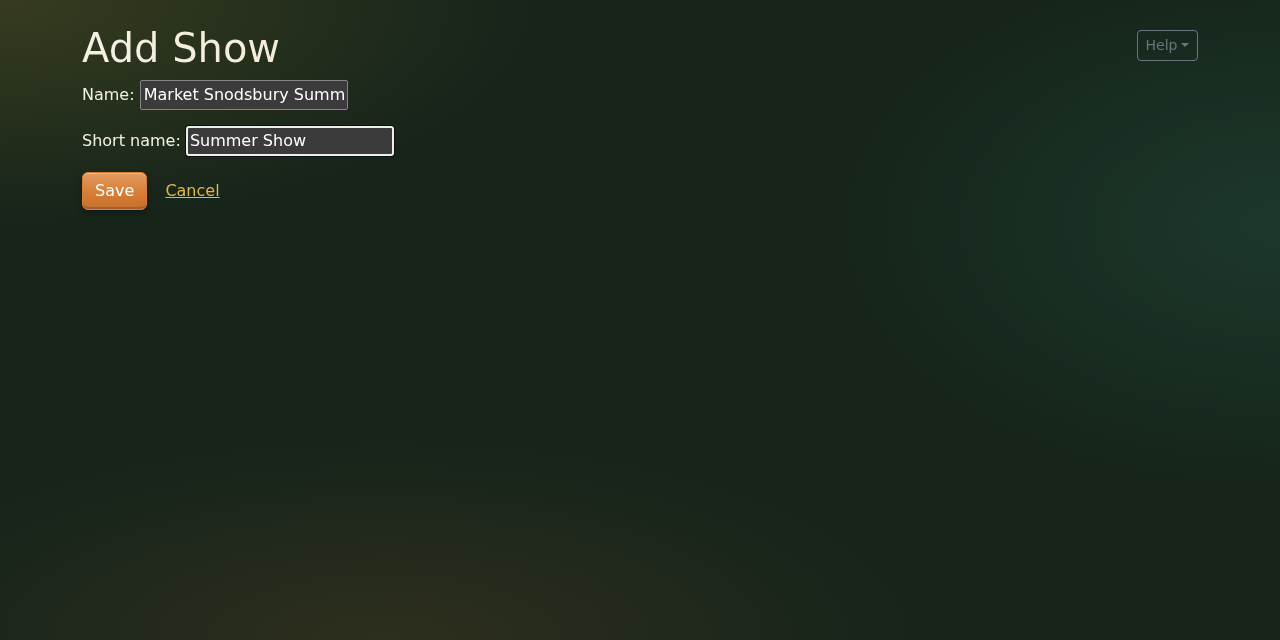
You're taken back to the home page, which now lists your show:
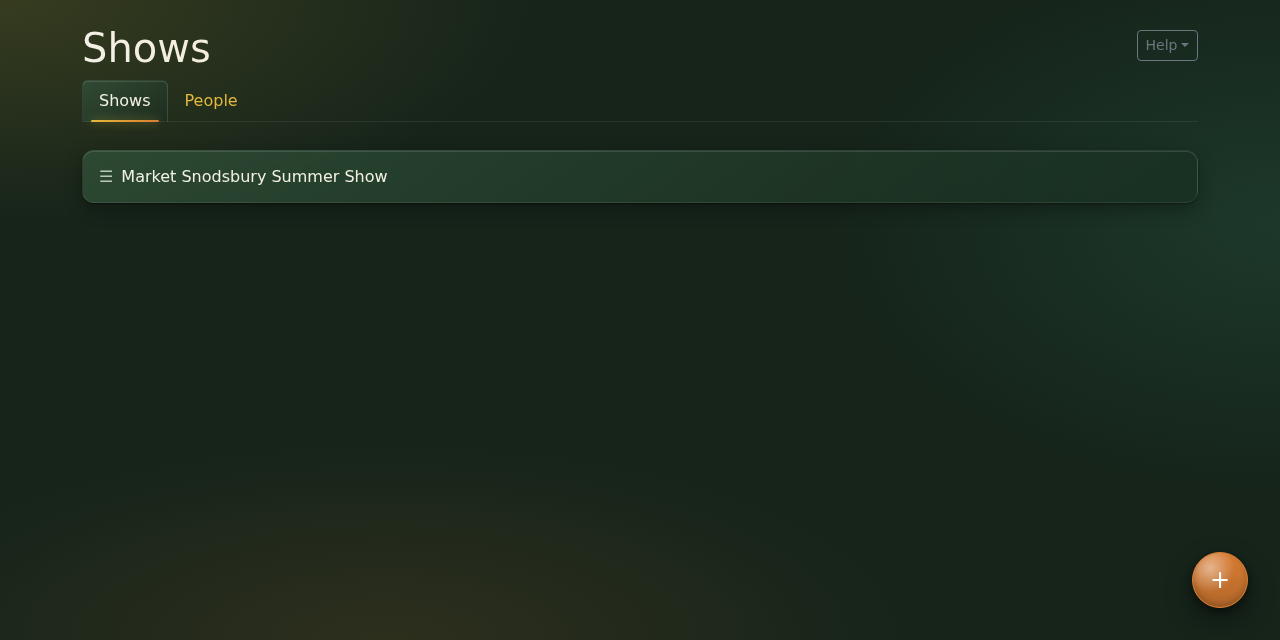
If you have several shows, you can change their order by dragging them up and down with the ☰ handle on the left. Click the show's name to open its page.
Step 2: The General tab
The show's page has four tabs: General, Classes, Awards and Editions. It opens on the General tab, which has the show's name and short name, in case you need to change them.
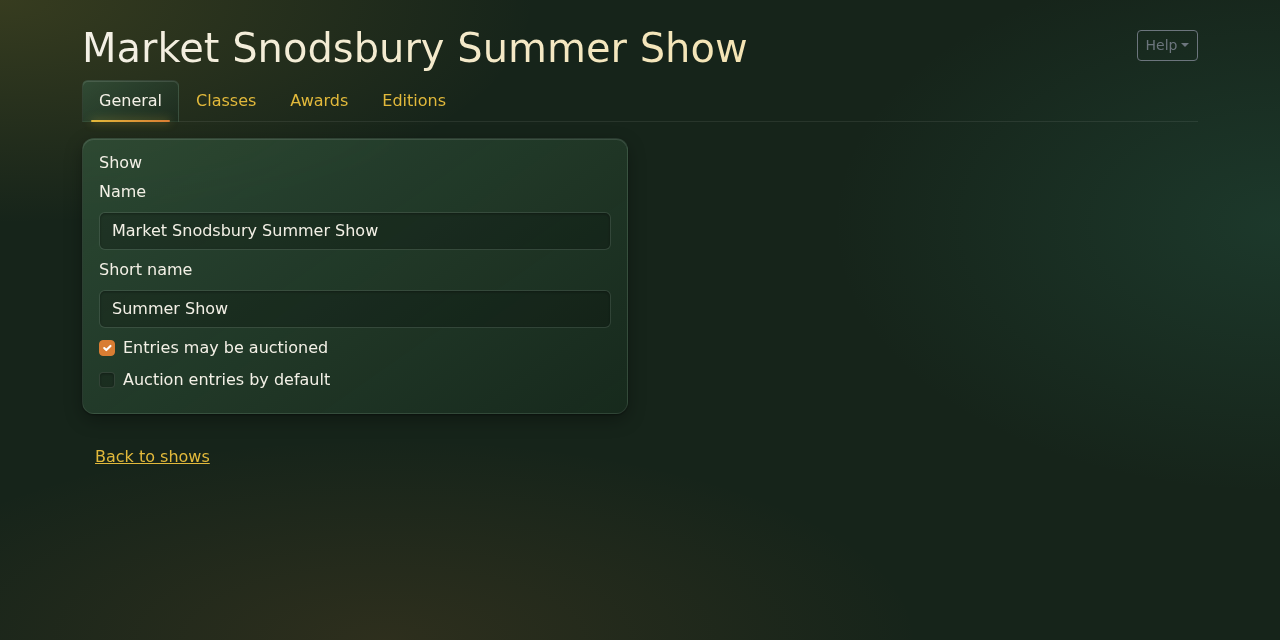
There are also a couple of checkboxes about auctions. Some shows auction off exhibits (produce, mostly) at the end of the day.
- If your show doesn't have an auction, leave Entries may be auctioned unticked, and you won't see anything about auctions anywhere.
- If it does, tick it. A second checkbox appears, Auction entries by default. Tick that if most entries will be auctioned, or leave it unticked if most won't. You can override it for individual classes later, and for individual entries when people enter.
Step 3: Sections
Click the Classes tab. This is where most of the work is. To start with there's nothing there:
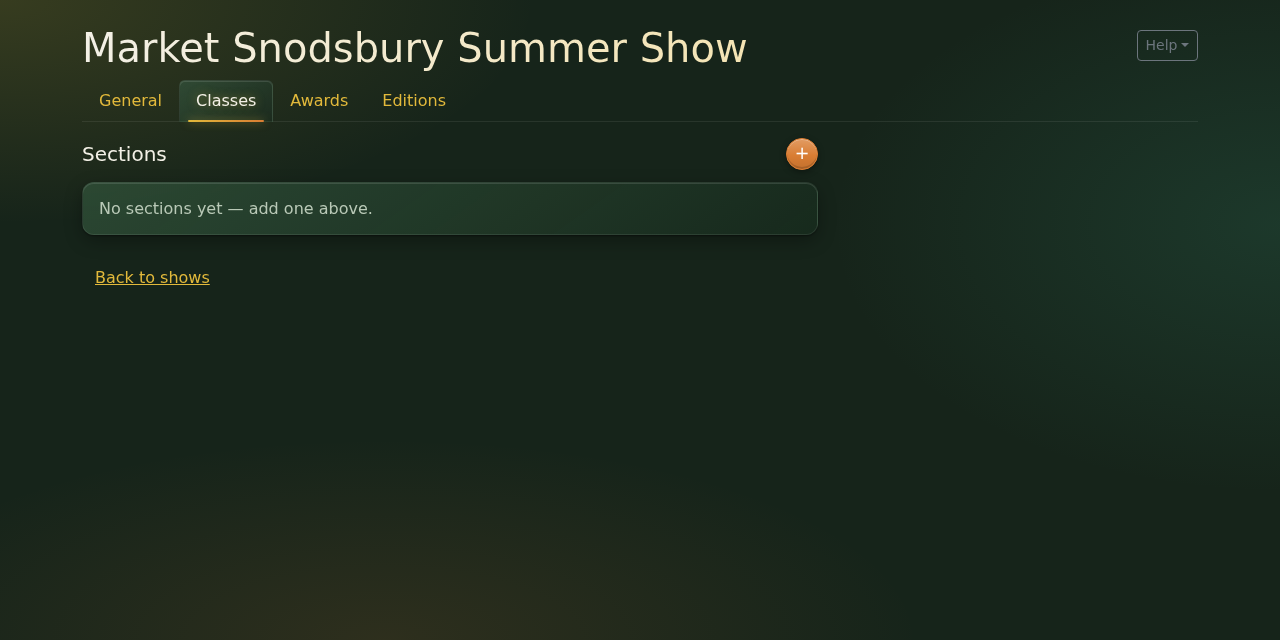
Let's add the first section.
-
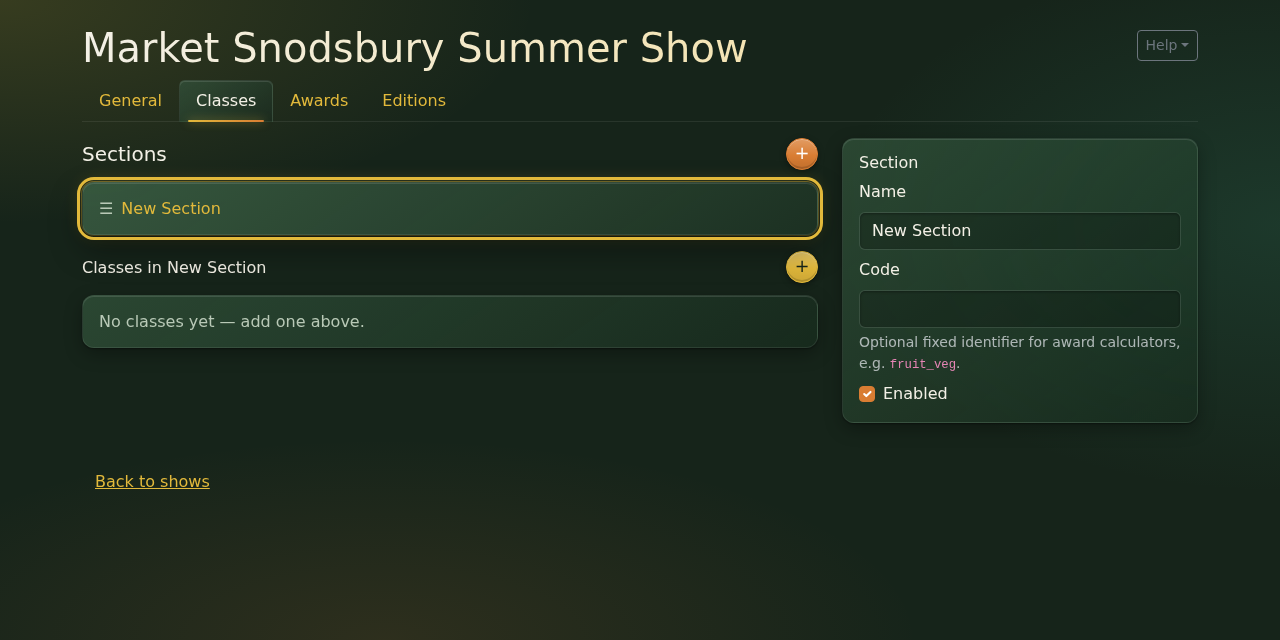
Click the + button next to Sections. A section called "New Section" appears, already selected, with its details in a box on the right.
-
Change the Name to the section's name, e.g. "Fruit & Vegetables".
-
Fill in the Code if you'd like to. This is a short label that never changes, e.g.
fruit_veg, which the award calculations use to find the section (more about those in Step 6). It can only have letters, digits,-and_, with no spaces, and each section in the show needs a different one. You only really need a code for sections that a calculated award mentions, but it does no harm to give every section one. -
Leave Enabled ticked.
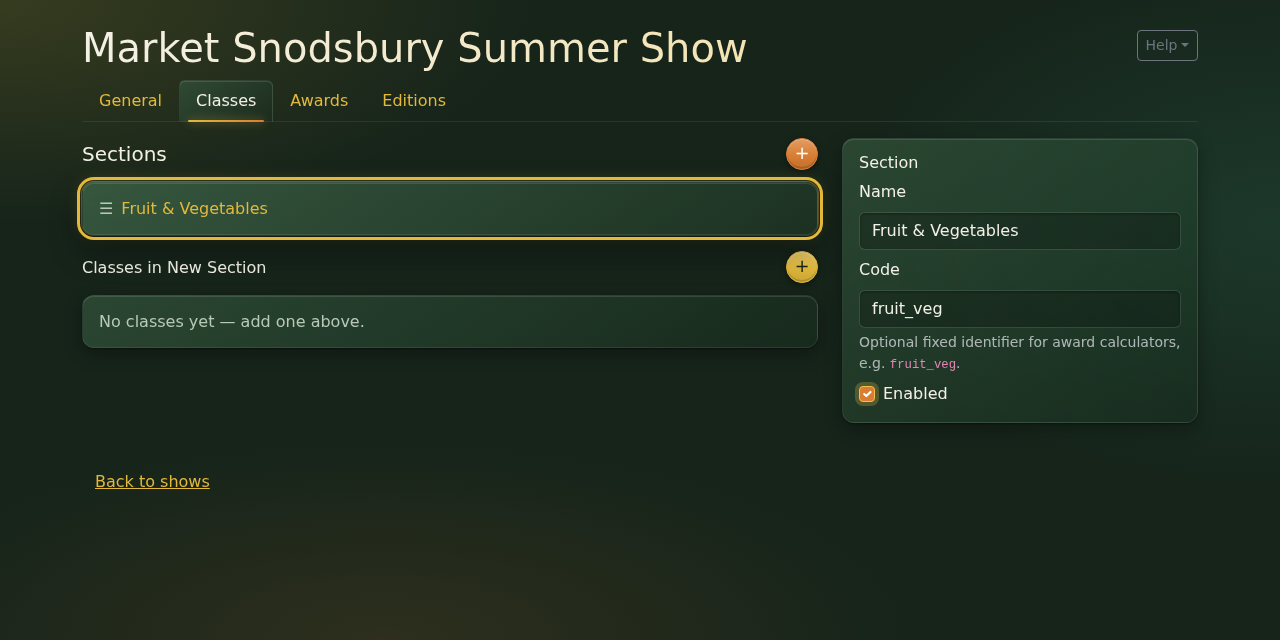
Then do the same for each of the other sections. New ones are always added at the bottom of the list.
Enabled is for sections that aren't running this year. Untick it rather than deleting the section, and you can just tick it again next year. A disabled section shows in a paler colour (like "Grammar School Classes" in the picture in Step 4), and is left out when the next edition is created.
Step 4: Classes
Classes belong to a section, so first click the section in the list to select it. Its classes are listed underneath, under the heading "Classes in …".
- Click the yellow + button next to Classes in Fruit & Vegetables. A class called "New Class" appears, with its details in a second box on the right.
- Change the Name to the class's name from the schedule, e.g. "3 Potatoes".
- Fill in the points for 1st, 2nd and 3rd places. These start at 0, so please don't skip them: points are what the calculated awards add up, and a class with no points won't count towards anything. Our example uses 3, 2 and 1. (Highly Commended never scores any points.)
- Fill in the prize money for 1st, 2nd and 3rd places, in pounds, so 50p is 0.50. Leave them at 0 if there isn't any prize money.
- If your show has an auction, choose from the Auction list. "Show default" follows the setting on the General tab. "Auction" and "Don't auction" override it for this class. We don't auction the marrows, for example. (If there's no auction, you won't see this list.)
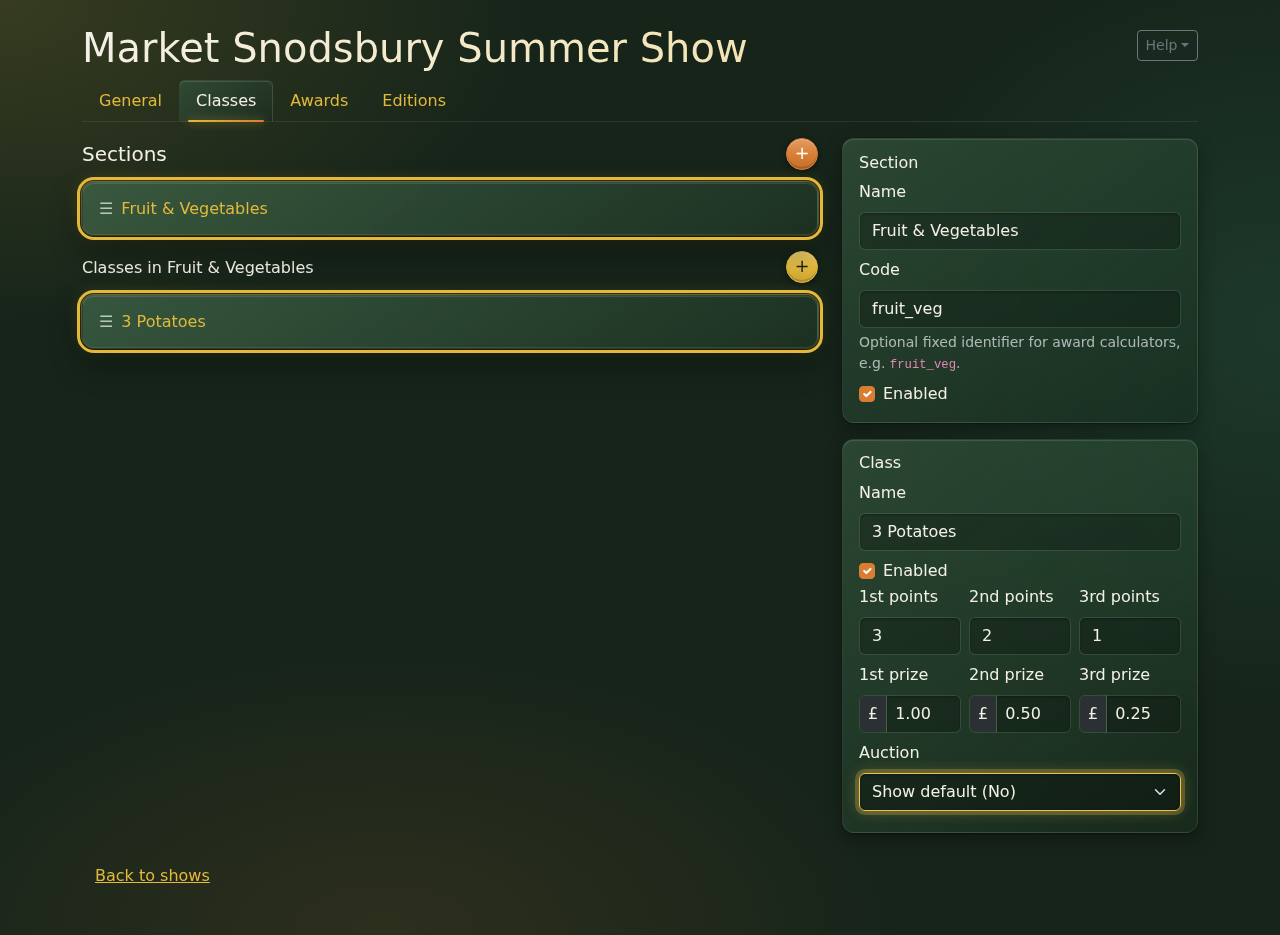
Carry on until every section has all its classes. Here's our Fruit & Vegetables section once it's done:
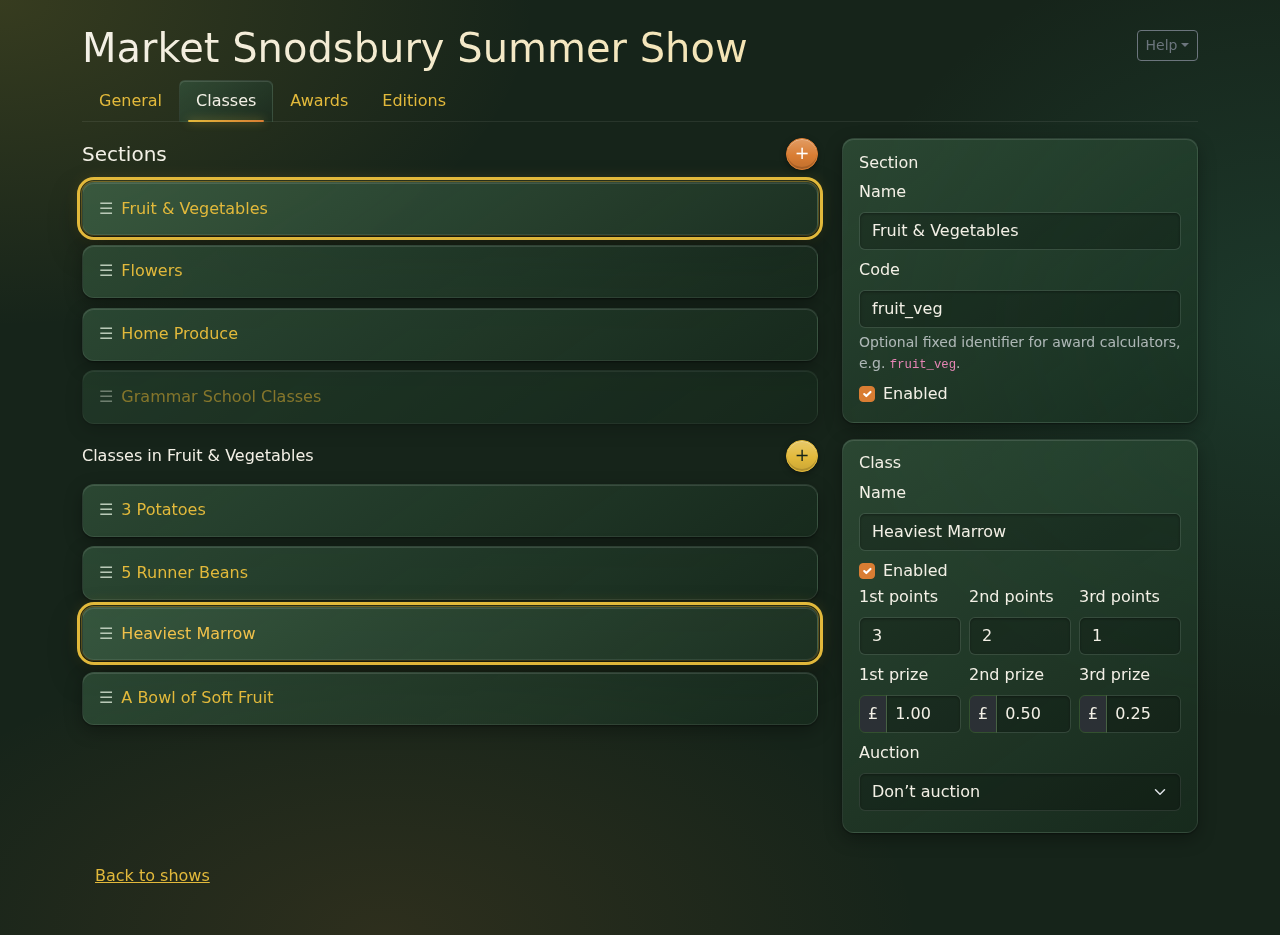
A few things worth knowing:
- Class names must all be different across the whole show, not just within a section. If two sections really do have the same class, make the names slightly different, e.g. "Vase of Sweet Peas" and "Vase of Sweet Peas (Grammar School)".
- Class numbers come from the order. You don't type in class numbers. The first section's classes are numbered 101, 102, 103 and so on, the second section's 201, 202 and so on. So it's worth getting the sections and classes into the same order as your schedule. Do that by dragging them with the ☰ handle.
- Enabled works for classes just as it does for sections.
Step 5: Awards
Now click the Awards tab. Every cup, trophy or prize the show gives out, other than ordinary 1st, 2nd and 3rd places, goes here.
- Click the + button next to Awards. An award called "New Award" appears, with its details on the right.
- Change the Name, e.g. "Brinkley Court Rose Bowl". Each award in the show needs a different name.
- Fill in the Description. This is how the award is won, in plain words. It's best to copy it word for word from your schedule, and it really matters for calculated awards (see Step 6).
- Fill in the Prize money if the award comes with any (in pounds, as for classes).
- Leave Enabled ticked. As with sections and classes, untick it for an award that isn't being given this year.
- Choose the Method, which says how the winner is decided. There are three to choose from.
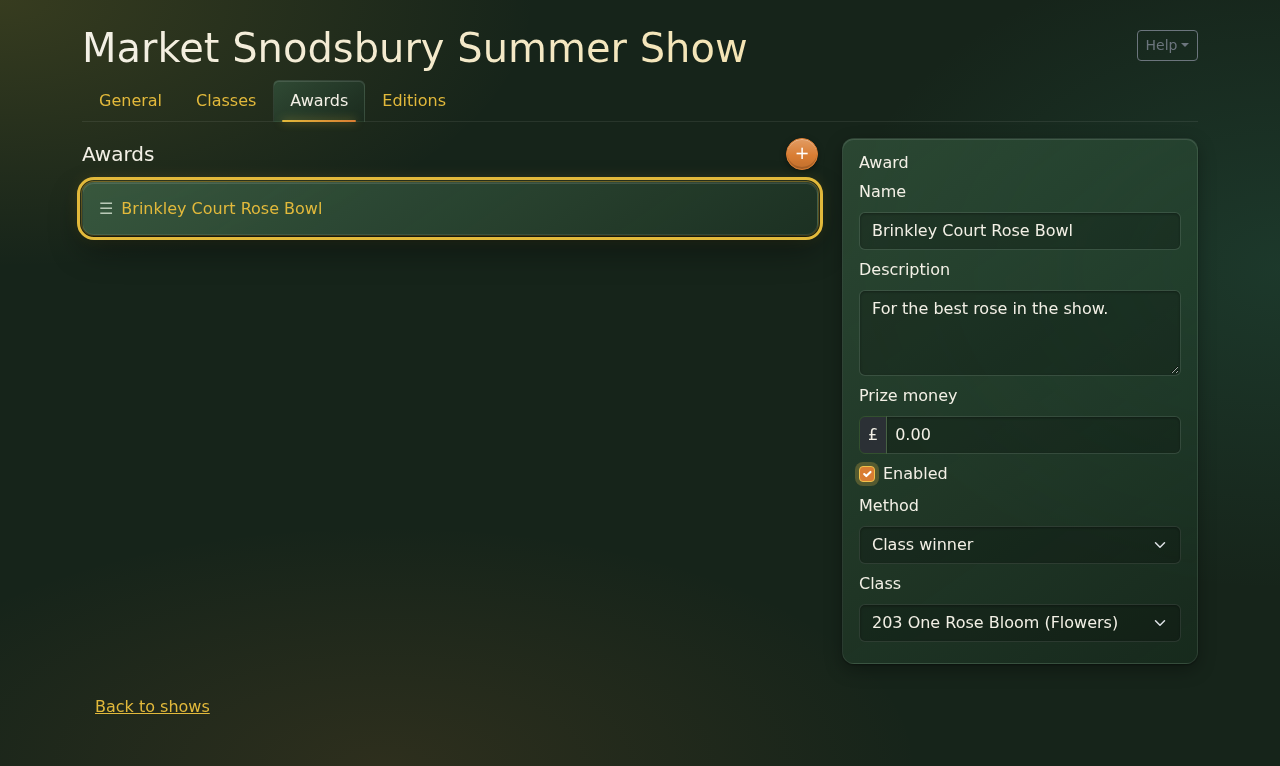
Class winner is for an award that goes to whoever comes 1st in one particular class. When you choose it, a Class list appears, so pick the class. The classes are listed with their numbers.
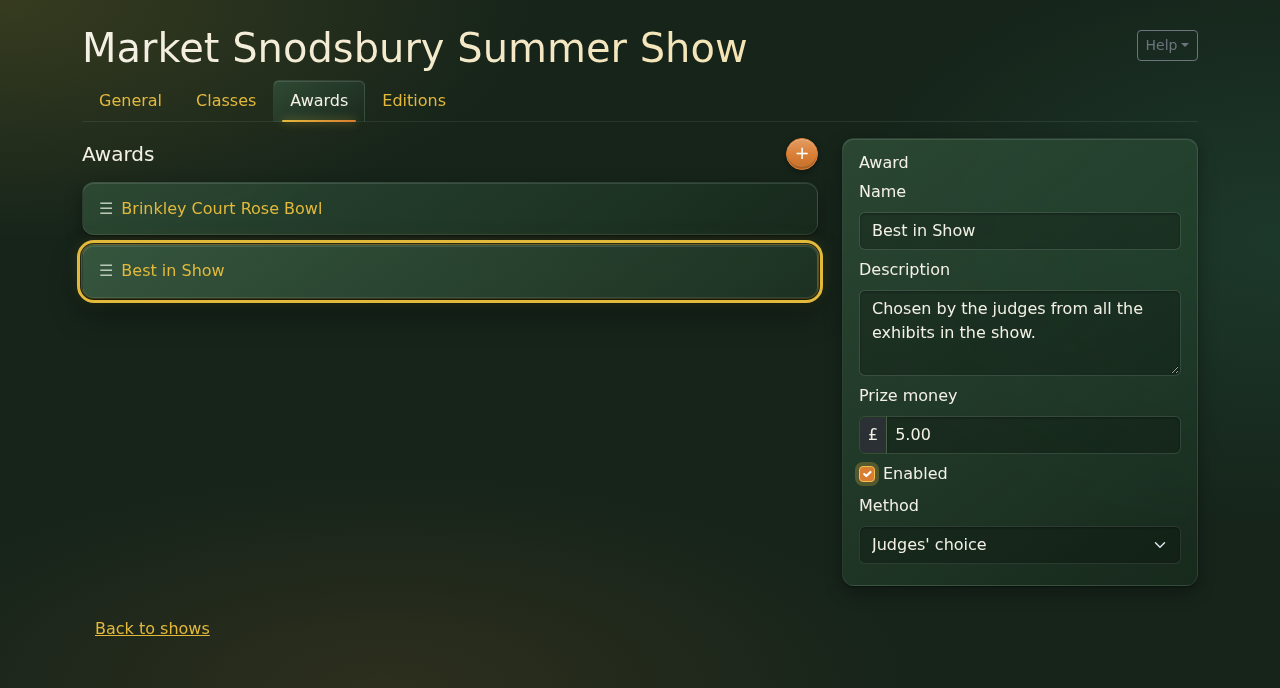
Judges' choice is for an award the judges decide on the day, like "Best in Show". There's nothing else to fill in. The winner is entered by hand after judging, on the edition's Winners tab.
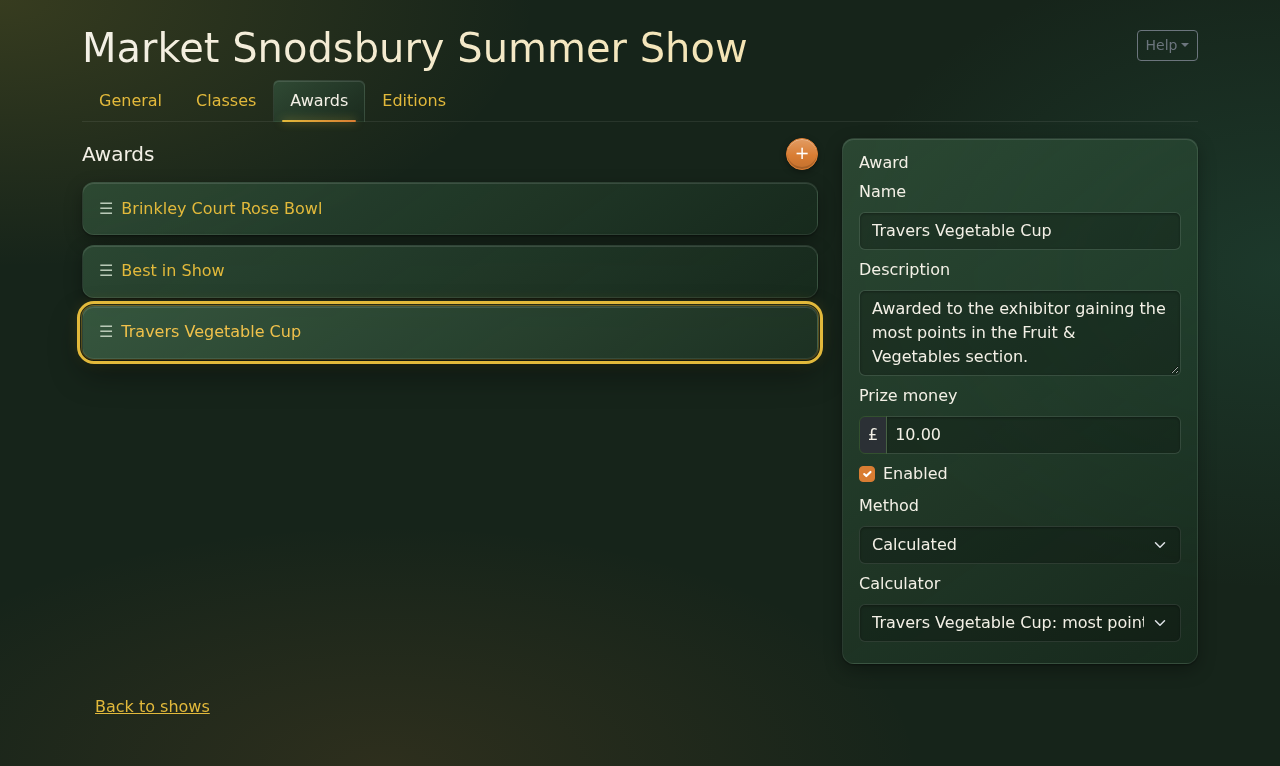
Calculated is for an award that goes to whoever scores the most points over a number of classes, like "most points in the Fruit & Vegetables section". When you choose it, a Calculator list appears. This is a list of small pieces of program code, one for each calculated award, so the award you want will only be there once someone has written its code. See the next step for how to do that.
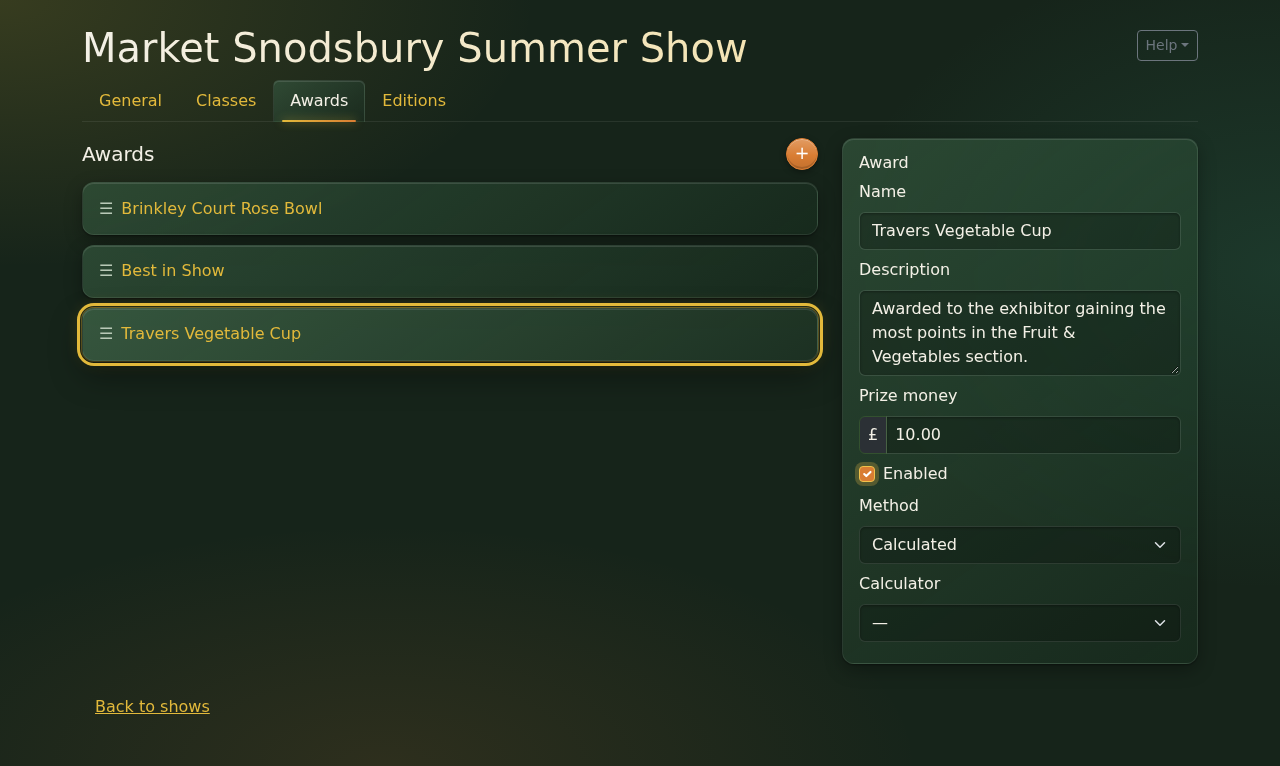
Note that the Method is only saved once its Class or Calculator has been picked too. So if your award's calculator hasn't been written yet, the award stays as Judges' choice for now, and that's fine.
You can drag the awards into whatever order you like. This is the order they'll appear in on the Winners tab.
Step 6: Calculated awards
This step needs someone who has Claude Code set up on the project. (The Setup guide will cover that.) The idea is that you describe the rule for each award in ordinary words, and Claude writes the code for you. Our own calculated awards were made this way.
-
Write the rule in the award's Description. Use the schedule's own words, e.g. "Awarded to the exhibitor gaining the most points in the Fruit & Vegetables section". If the rule names sections, by name or by number, that's fine.
-
Give a Code to each section the rule mentions (see Step 3). The code keeps working even if the section is renamed or moved later on.
-
Ask Claude. Something like this works well:
I have added classes and awards to the Market Snodsbury Summer Show. Please look at the award descriptions and create functions in a new file
shows/award_calculators/market_snodsbury.pyfor the ones that are calculated by summing points, then update the award methods to use those functions. Please refer to sections by their codes. Some descriptions may refer to things we don't have yet, e.g. whether someone is a parishioner. Just make a note in the function commentary that these will need to be added later, and implement the rest of the description.It's worth adding anything the schedule doesn't spell out, such as what happens in a tie. For example: "If the top scores are tied, the winner is the entrant with the most 1sts in the show, then the most 2nds, then the most 3rds". Otherwise people with the same top score share the award.
-
Answer Claude's questions. Claude will usually ask a question or two before it starts, and suggests an answer, marked "(Recommended)". A common one is whether a rule like "classes 101 to 303" should follow the class numbers or the sections. Numbers change if you reorder classes, and section codes don't.
-
Check the awards. Go back to the Awards tab and reload the page. Each calculated award should now show Calculated, with its calculator picked in the Calculator list. If one isn't, just choose it from the list yourself.
-
Commit the code. Ask Claude to "commit and push", so the new code is saved in the project and gets onto the computer where the app actually runs. The app there needs restarting to pick it up. Note that Claude only sets the award's Method in the database it's working on. So if the app runs somewhere else, set Method and Calculator by hand there, as in Step 5.
An example: the Travers Vegetable Cup
Here's the calculator for our Travers Vegetable Cup, which is just the sort of thing Claude writes from the description "Awarded to the exhibitor gaining the most points in the Fruit & Vegetables section":
@register("market_snodsbury_vegetable_cup", "Travers Vegetable Cup: most points in Fruit & Vegetables")
def vegetable_cup(edition_award):
    """"Awarded to the exhibitor gaining the most points in the Fruit & Vegetables section." """
    return section_entries(edition_award, "fruit_veg")
You don't need to follow the details, but it's worth seeing how little there is to it:
- The first line gives the calculator a fixed name for the program to use, and the label you see in the Calculator list.
- The last line picks out every entry in the section whose code is
fruit_veg. The system does the rest: it adds up each entrant's points from those entries, and whoever has the most wins.
So most calculators are only a line or two. They get longer when a rule has extra conditions, e.g. "ladies only", or a tie-breaker.
Our example's code is kept in
docs/guides/tools/guide_example/calculators.py, so that it only
shows up when the app is run for the guides. A real show's calculators go in
shows/award_calculators/.
A couple of tips
- Rules about who can win, e.g. "ladies only" or "for parishioners", need information about people that the system may not have yet. These can be added as Person Properties in Django admin, and Claude can use them in the calculation.
- If you'd like to try something out before committing to it, ask for the calculator to go in a
file whose name starts with
local_, e.g.local_market_snodsbury.py. Those files work just the same, but they're never committed.
Before your first edition
When an edition is created, it copies the show's sections, classes and awards, but only the ones that are enabled at that moment. Anything added or enabled afterwards won't appear in that edition. So before you create the edition, it's worth a quick check:
- Are all the sections and classes there, in schedule order, with the right names?
- Do the classes have their points and prize money?
- Are any sections, classes or awards that aren't running this year disabled?
- Does every award have the right method, with its class or calculator picked?
Then you're ready to create an edition from the show's Editions tab, and start taking entries. That's covered in the Running a show guide.