Running a show
This guide follows one year's show from start to finish: getting it ready, taking entries, printing what you need beforehand, and then on the day entering the judges' results, working out who has won the awards, and printing the reports. As before, you don't need to know anything about the system. Just take it a step at a time.
We'll carry on with the Market Snodsbury Summer Show from the Creating a show guide, and run its 2026 show. If you haven't set up your own show yet, it's worth reading that guide first.
A quick reminder of how things fit together. The show holds the sections, classes and awards that stay the same from year to year. Each year's show is an edition, which gets its own copy of them, plus that year's entrants, entries, results and winners.
If someone is helping to run just this year's show, a show admin can let them in with the Edition admins button at the top of the edition's page. They see only that edition, listed under Your editions on their home page (see Administration).
Before the show
Step 1: Create the edition
Open the show from the home page, and click its Editions tab. The first time, there's nothing there yet:
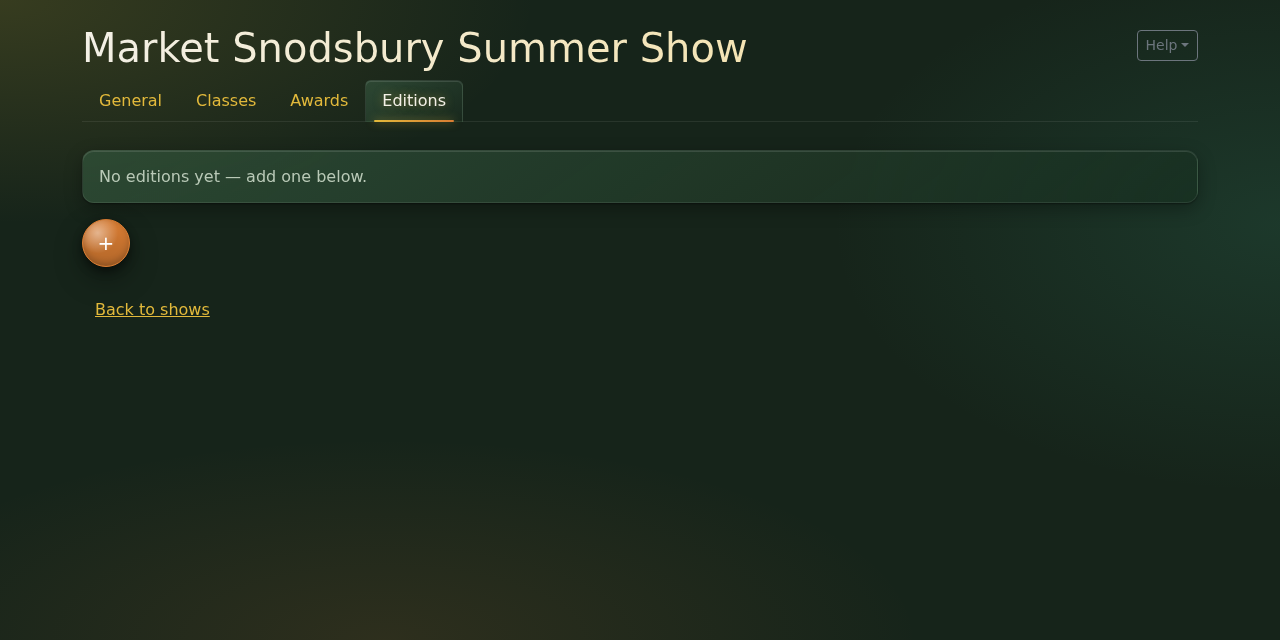
- Click the round + button.
- Fill in the Name, e.g. "Market Snodsbury Summer Show 2026".
- Fill in the Date of the show, written year first, e.g. 2026-07-18.
- Click Save.
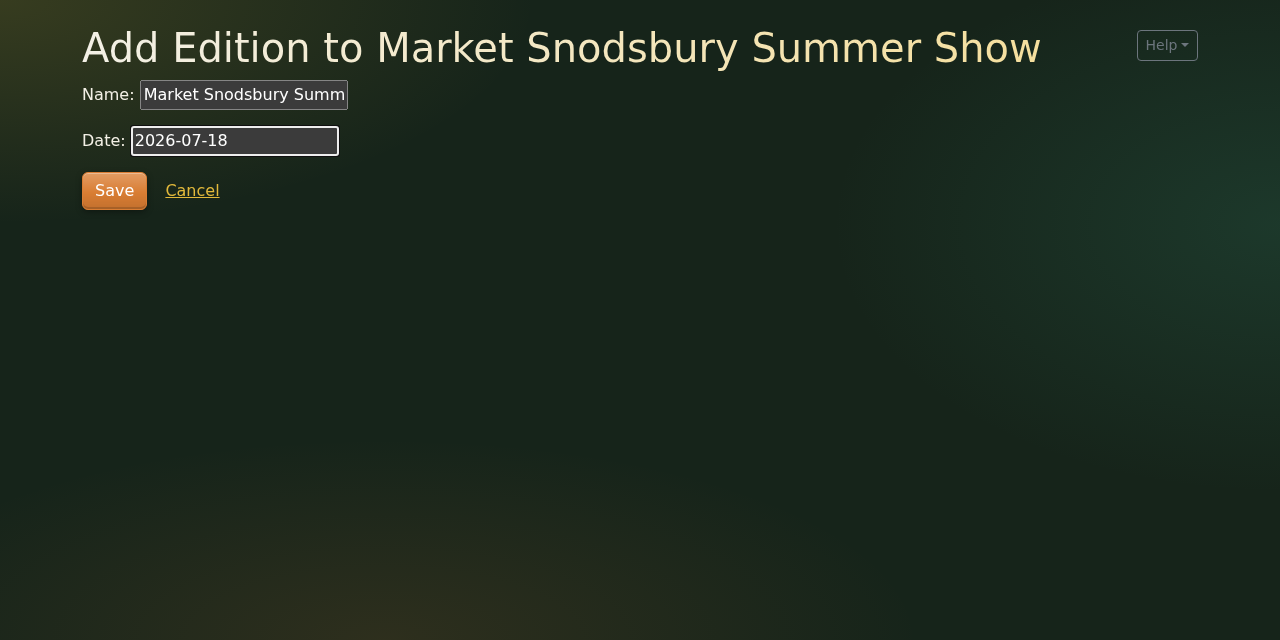
You're taken straight to the new edition's page. It has six tabs: Classes, Awards, Entries, Scores, Winners and Reports. We'll work through them more or less in that order.
Note that the edition copies the show's sections, classes and awards at the moment you create it, and only the ones that are enabled. Changes made to the show afterwards don't reach this edition. So it's worth getting the show right first (there's a check-list at the end of the Creating a show guide).
Step 2: This year's changes
Schedules change a little from year to year, so the edition's Classes and Awards tabs let you make this year's changes without touching the show itself. They work just like the show's tabs: click a section, then a class, and its details appear on the right.
You can:
- rename sections and classes. In our example the sweet peas class has become "A Vase of 5 Sweet Pea Stems" this year.
- reorder them, by dragging with the ☰ handle. Remember that class numbers come from the order, so moving a class changes its number.
- change an award's name and description.
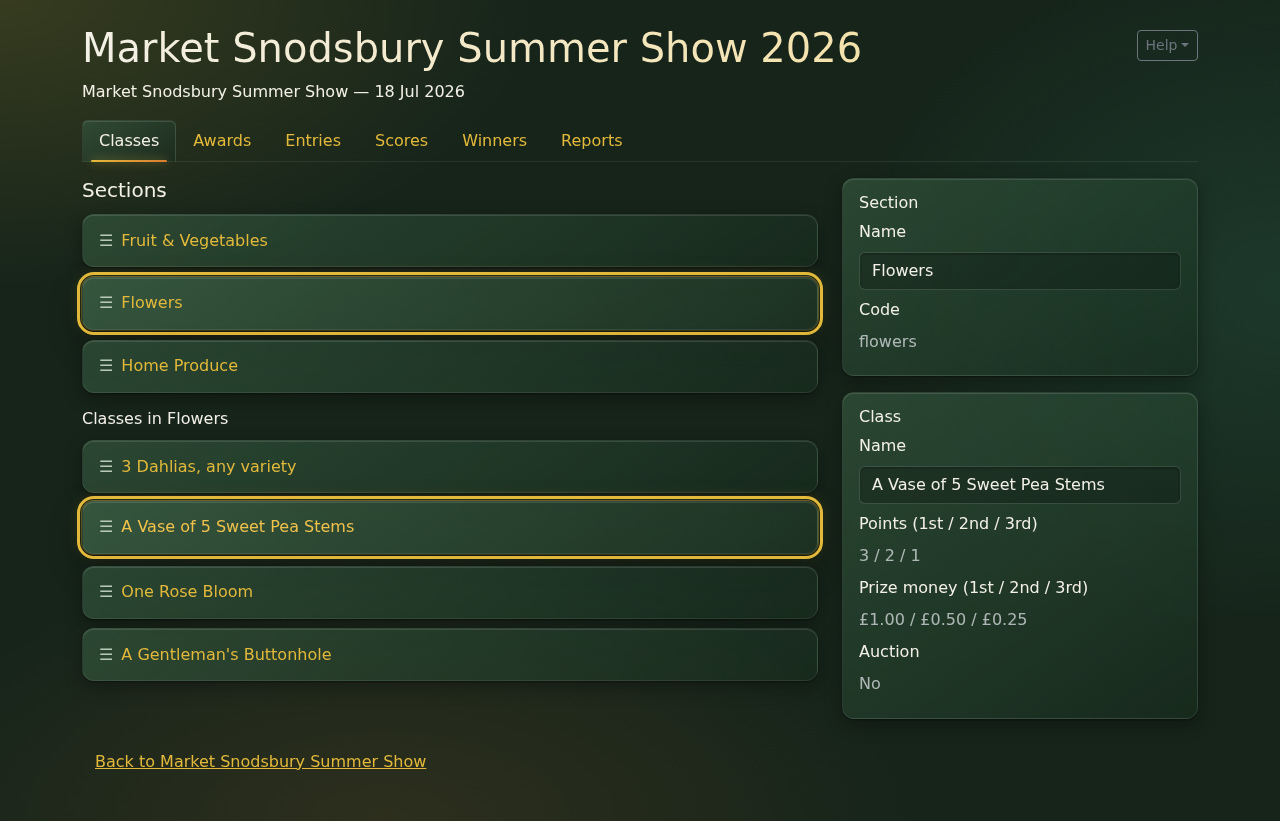
There are no + buttons, so you can't add sections, classes or awards here, and you can't change points, prize money or how an award is won. These are shown greyed out, so you can check them. That's why it's worth getting the show right before you create the edition. A class added to the show now will only appear from next year's edition.
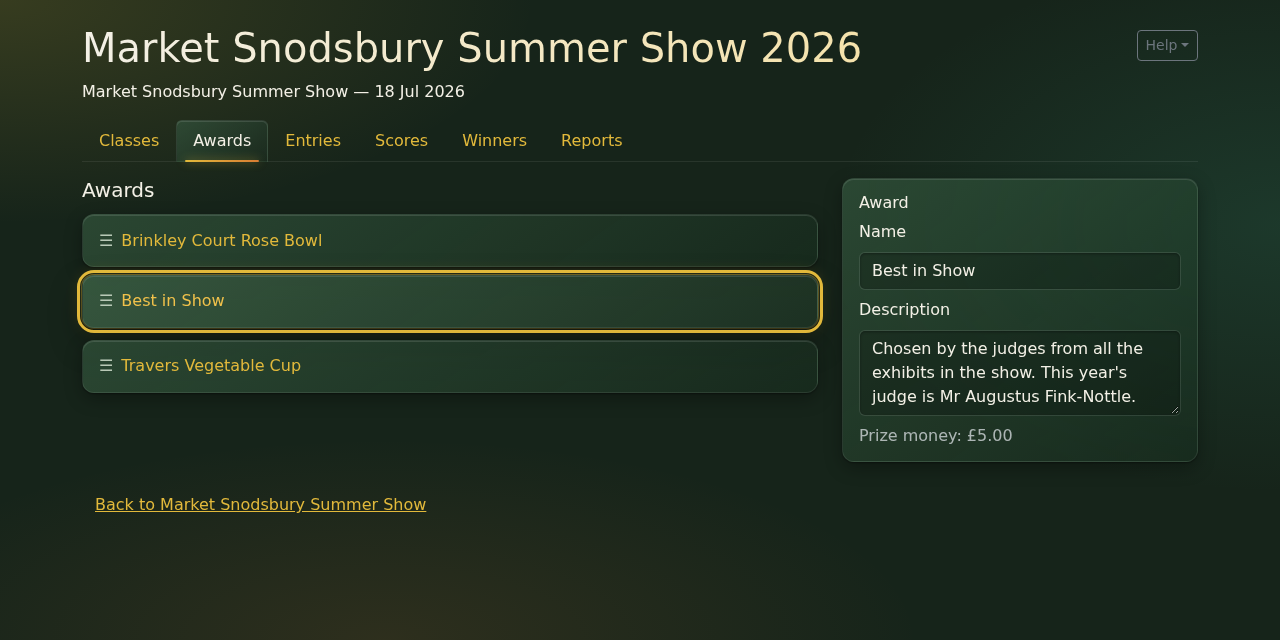
Note that, as on the show's page, a change is saved as soon as you leave the box. One small thing: the other tabs only pick up a renamed class once you reload the page, so do that after renaming anything.
Step 3: Take the entries
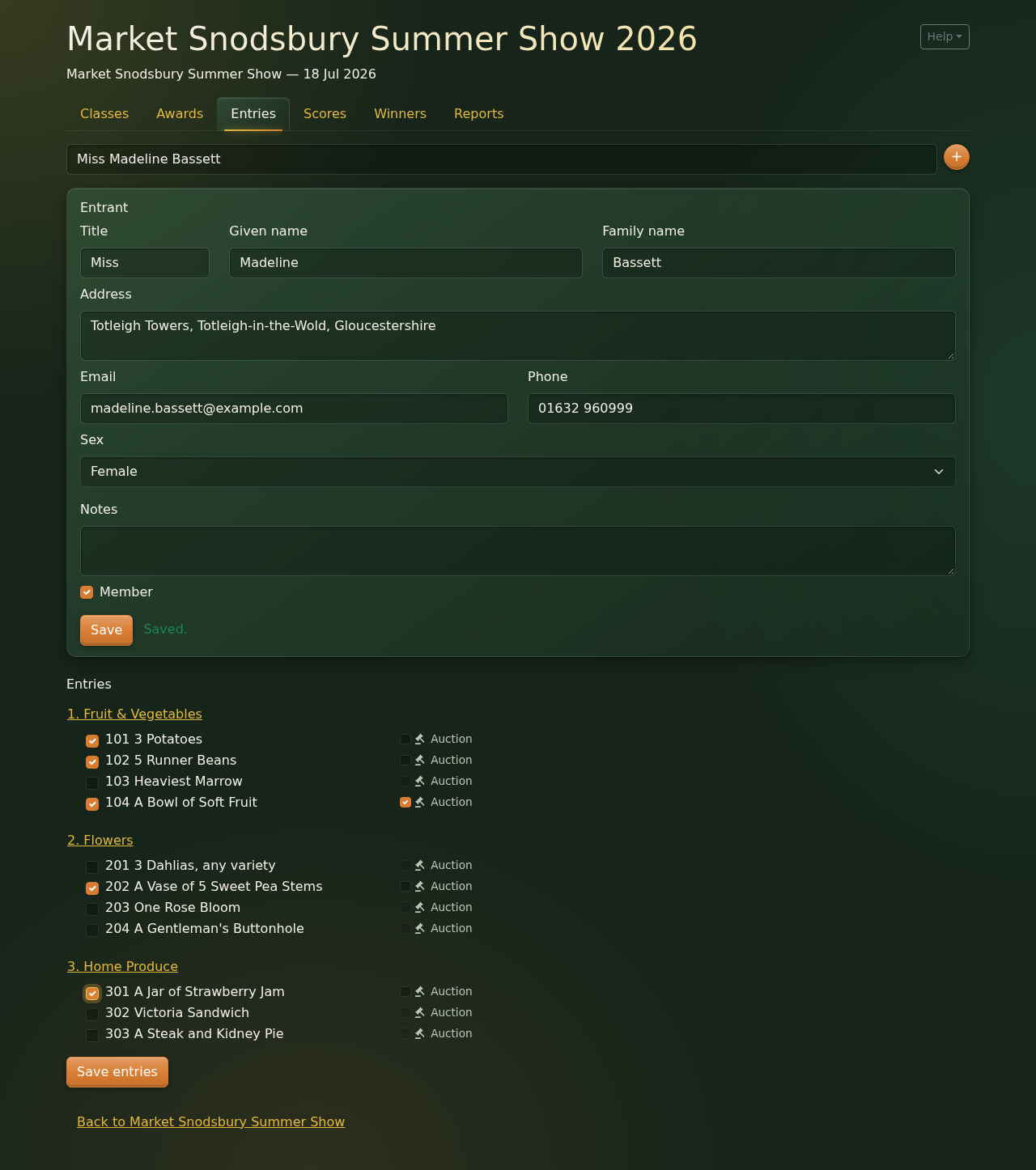
Click the Entries tab. The top half is for the entrant's details, and the bottom half shows the classes they've entered.
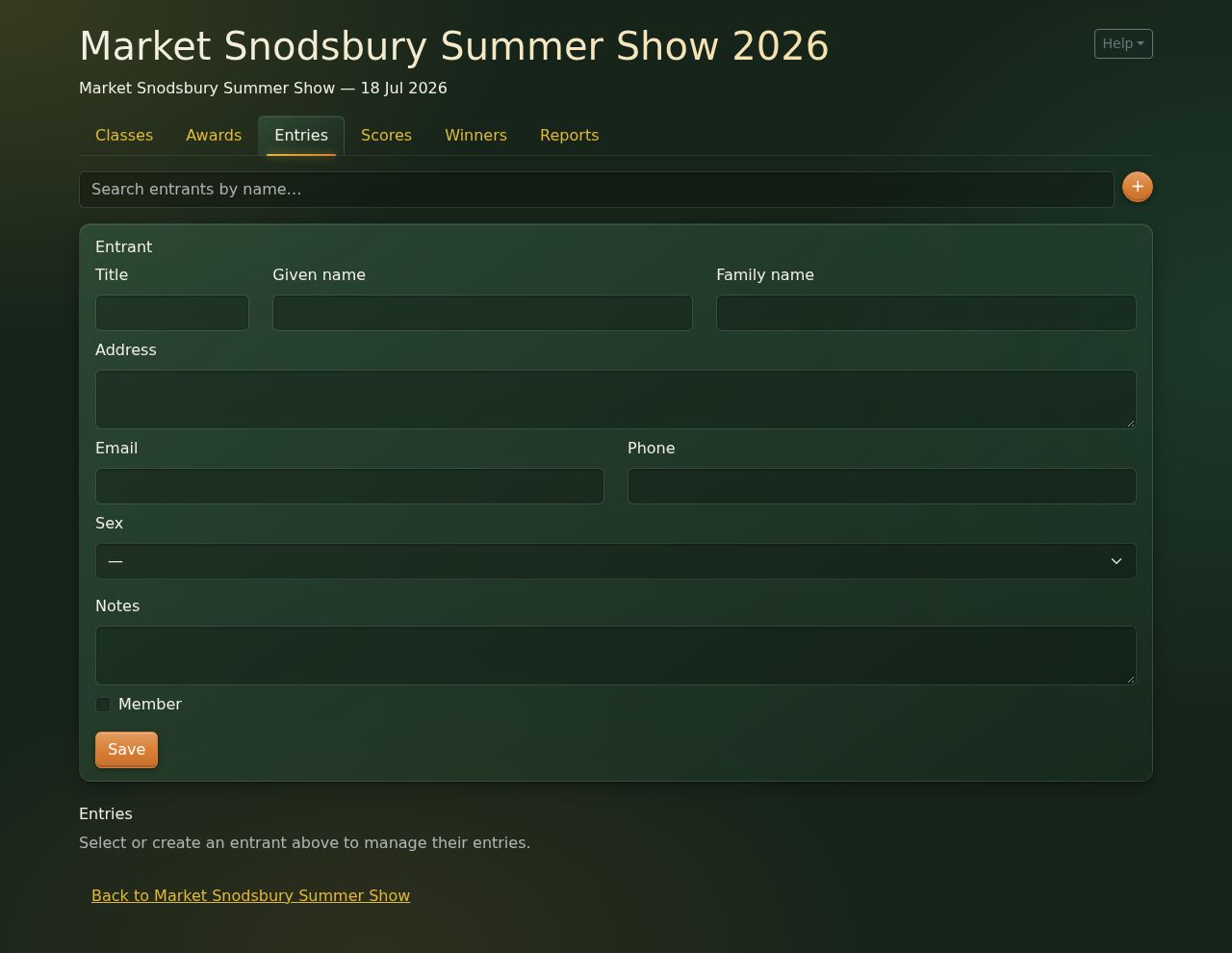
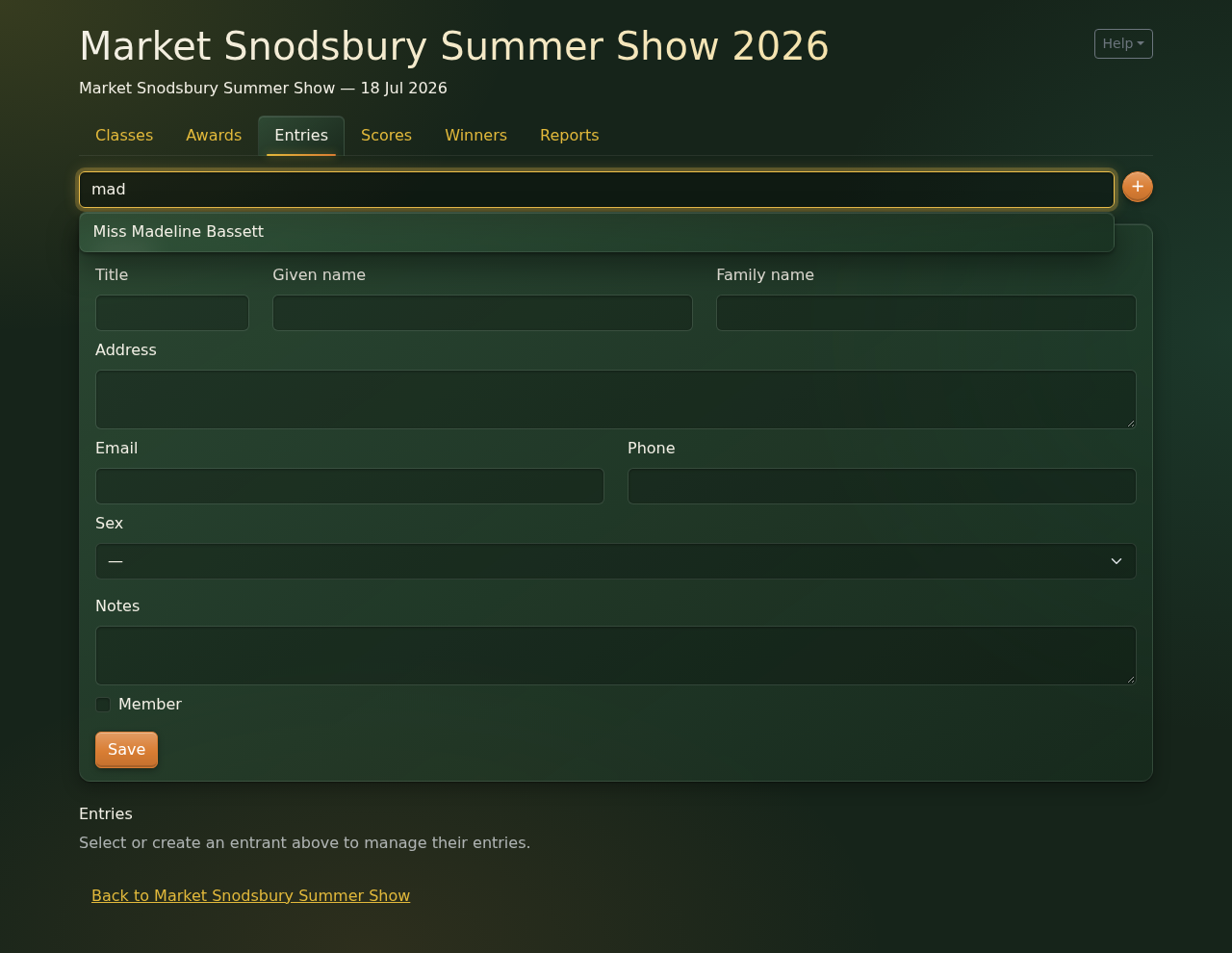
Someone who has entered before. Start typing their name in the search box at the top. After a couple of letters, a list of matching people appears. Note that this searches everyone who has ever been put into the system, not just this year's entrants, so please always look for someone before adding them, to avoid having two copies of the same person.
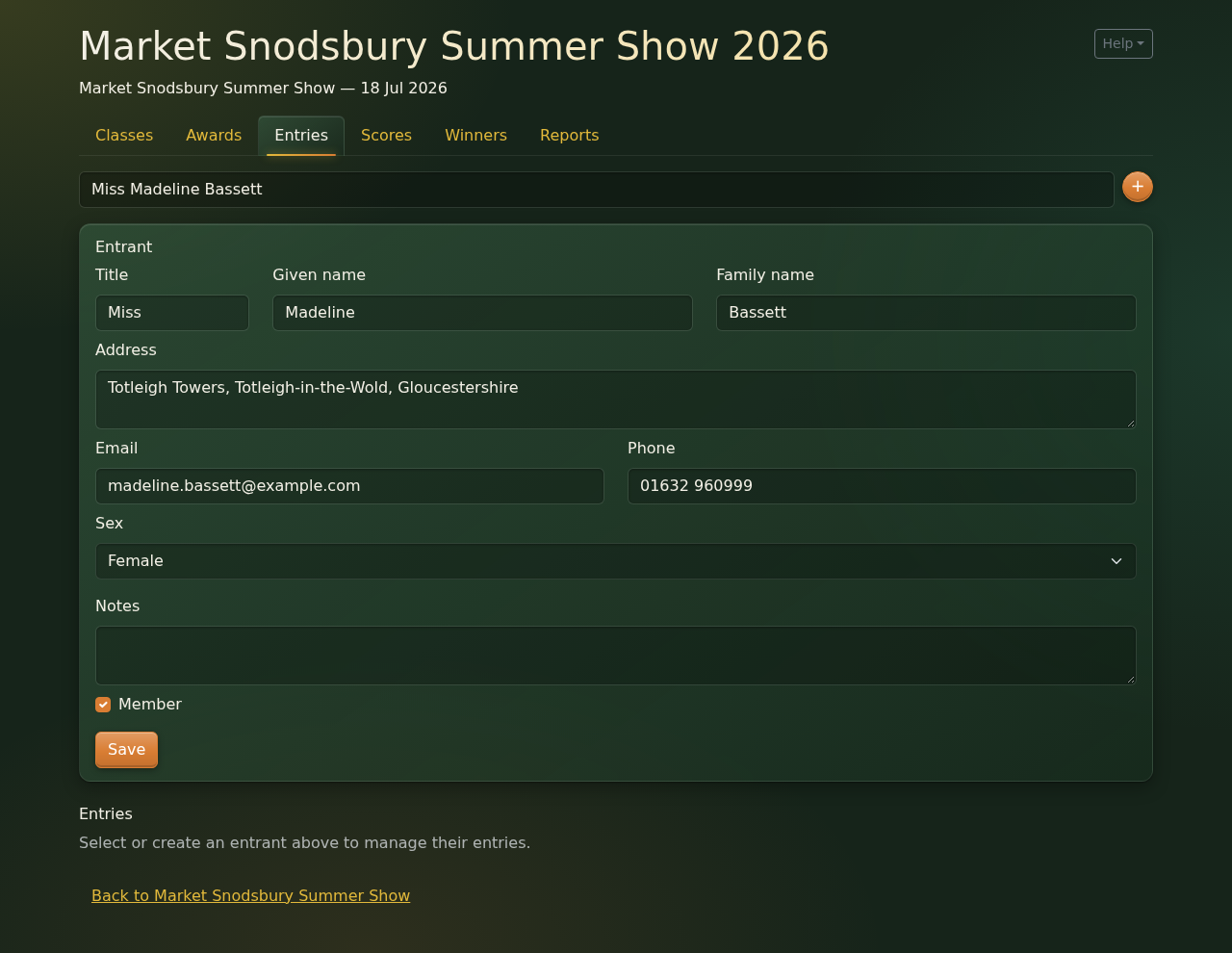
Click their name, and their details appear. Check them over, change anything that's out of date, and then click Save. Please don't miss this: it's what enters them in this year's show, and the classes can't be ticked until you've done it.
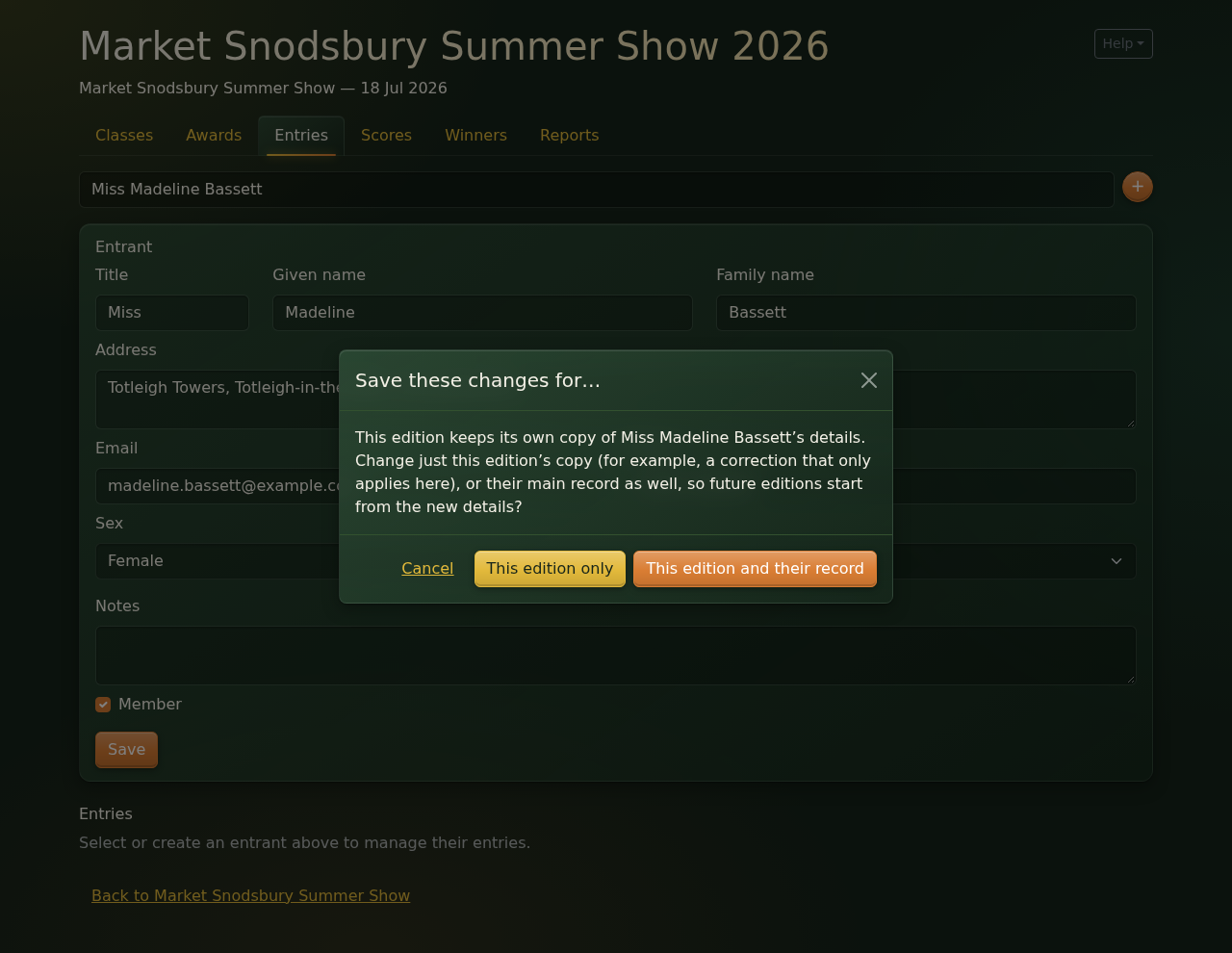
Each edition keeps its own copy of everyone's details, so that old results always show people as they were at the time. If you changed anything before clicking Save, you're asked whether the change is for this edition only, or for their main record as well:
- This edition and their record is usually what you want: a new phone number, say, or a new address. Next year's show starts from the updated details.
- This edition only is for something that only applies to this show, such as a correction to how their name should appear on this year's cards.
Earlier editions are never changed either way. Madeline has a new phone number:
Now tick each class they're entering, and click Save entries. If your show has an auction, each ticked class also has an Auction checkbox, which starts off with the class's setting. Change it if this particular entry should (or shouldn't) be auctioned. Madeline is happy for her soft fruit to be auctioned, for example.
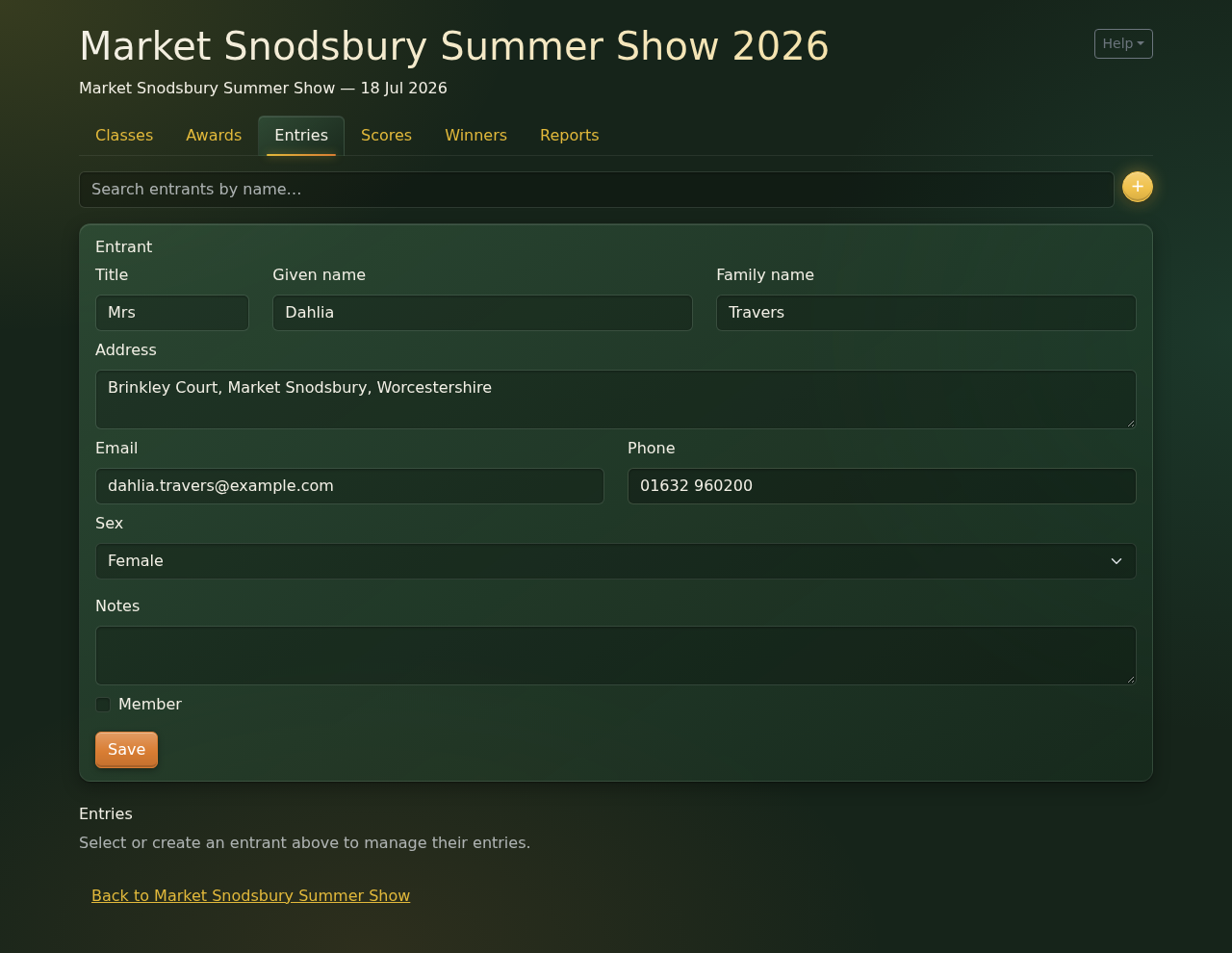
Someone new. Click the round + button next to the search box, fill in their details, and click Save. You only really need their name, but the rest is useful for getting in touch. For Title, pick one from the list (it offers the titles other people already have, like Mrs or Dr) or type a new one.
Then tick their classes and click Save entries, as before. "Saved." appears next to each button when it's done:
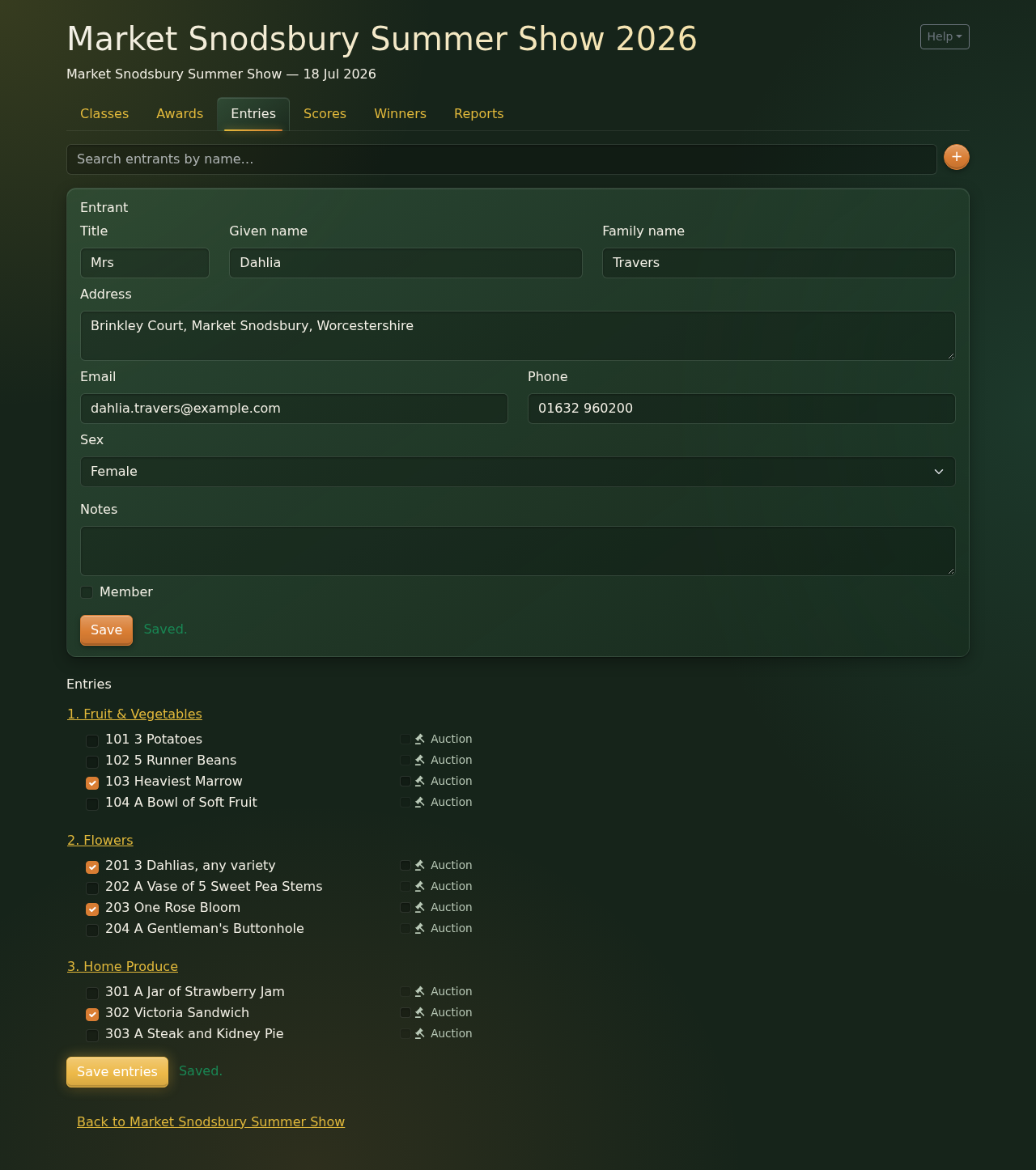
If you try to move on to someone else, or another tab, without saving your changes, the page asks whether you want to throw them away. So nothing gets lost by accident.
Each entry gets its own entry number, three letters and two digits, e.g. QZJ62. The judges only ever see this number, not the entrant's name, which keeps the judging anonymous.
Step 4: Print the entry cards and stewards books
Once the entries are in, click the Reports tab. The reports are grouped under Labels and Badges, Show Admin and Analysis. The ones you need before the show are under Show Admin:
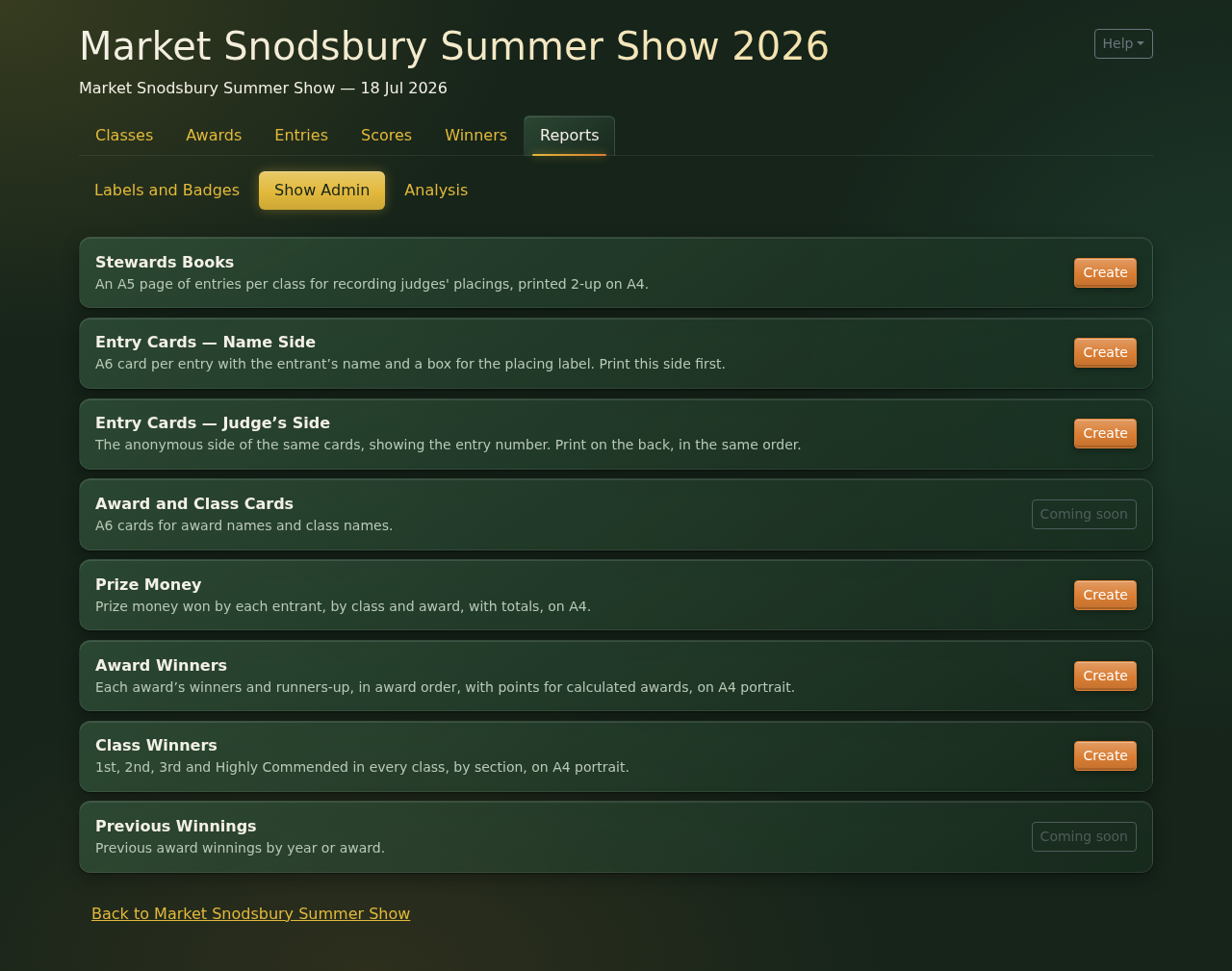
Click Create next to a report to open it. Every report works the same way: it opens in the same browser tab, you page through it on screen with Prev and Next, and Print… brings up the usual print window, where you choose your printer (or "Save as PDF"). The link at the top left takes you back to the edition. Each report also has a line of printing tips just under the toolbar, and it's worth following them. In particular, print at 100% scale, not "fit to page".
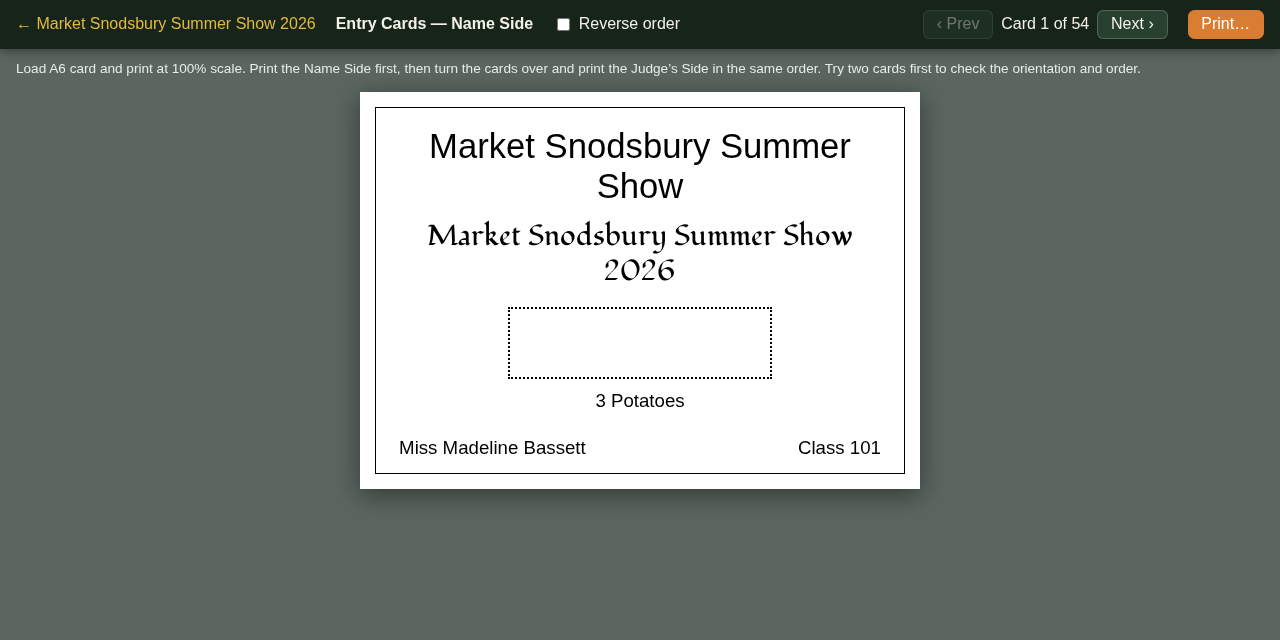
Entry cards go with each exhibit. They're A6 cards, one per entry, printed on both sides. The Name Side has the entrant's name, and a box for the prize label later:
The Judge's Side has only the entry number, so this is the side the judges see:
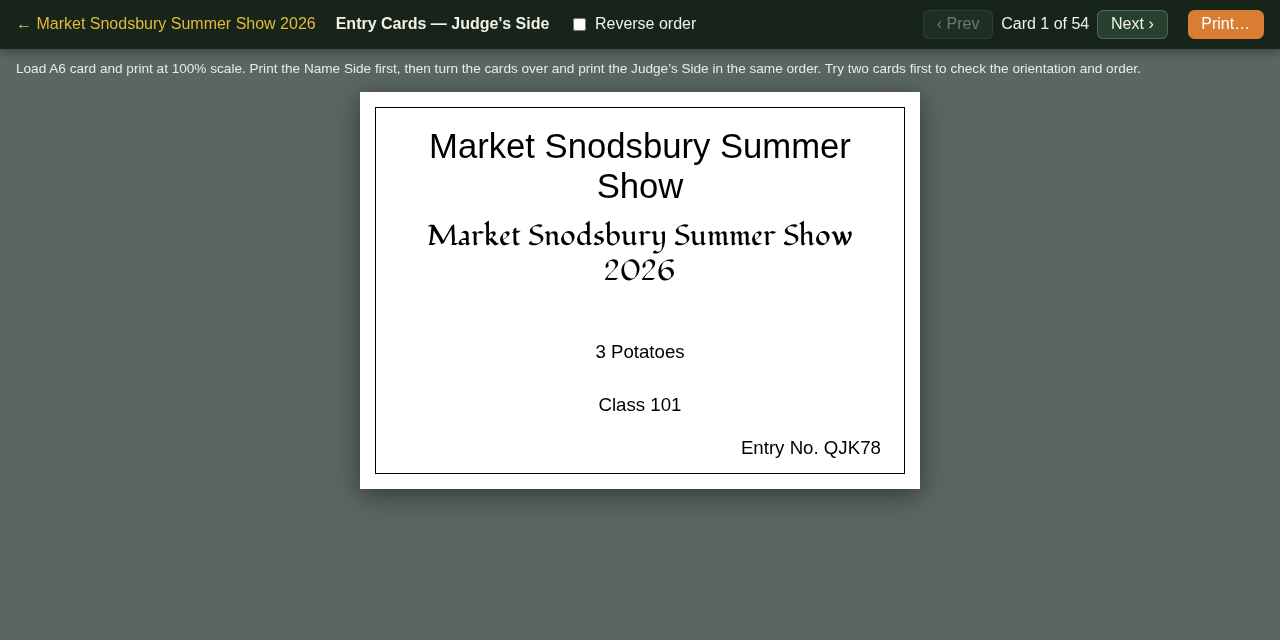
Print the Name Side first, then turn the cards over, put them back in the printer, and print the Judge's Side in the same order. It's well worth trying a couple of cards first, to check which way round they need to go. If your printer stacks the cards the other way round, the Reverse order tick-box at the top of each side prints them in the opposite order.
Stewards books have an A5 page for each class, listing its entries with a column for the prize awarded. The stewards use them on the day to write down the judges' decisions. They print two pages to a sheet of A4, so cut each sheet down the middle.
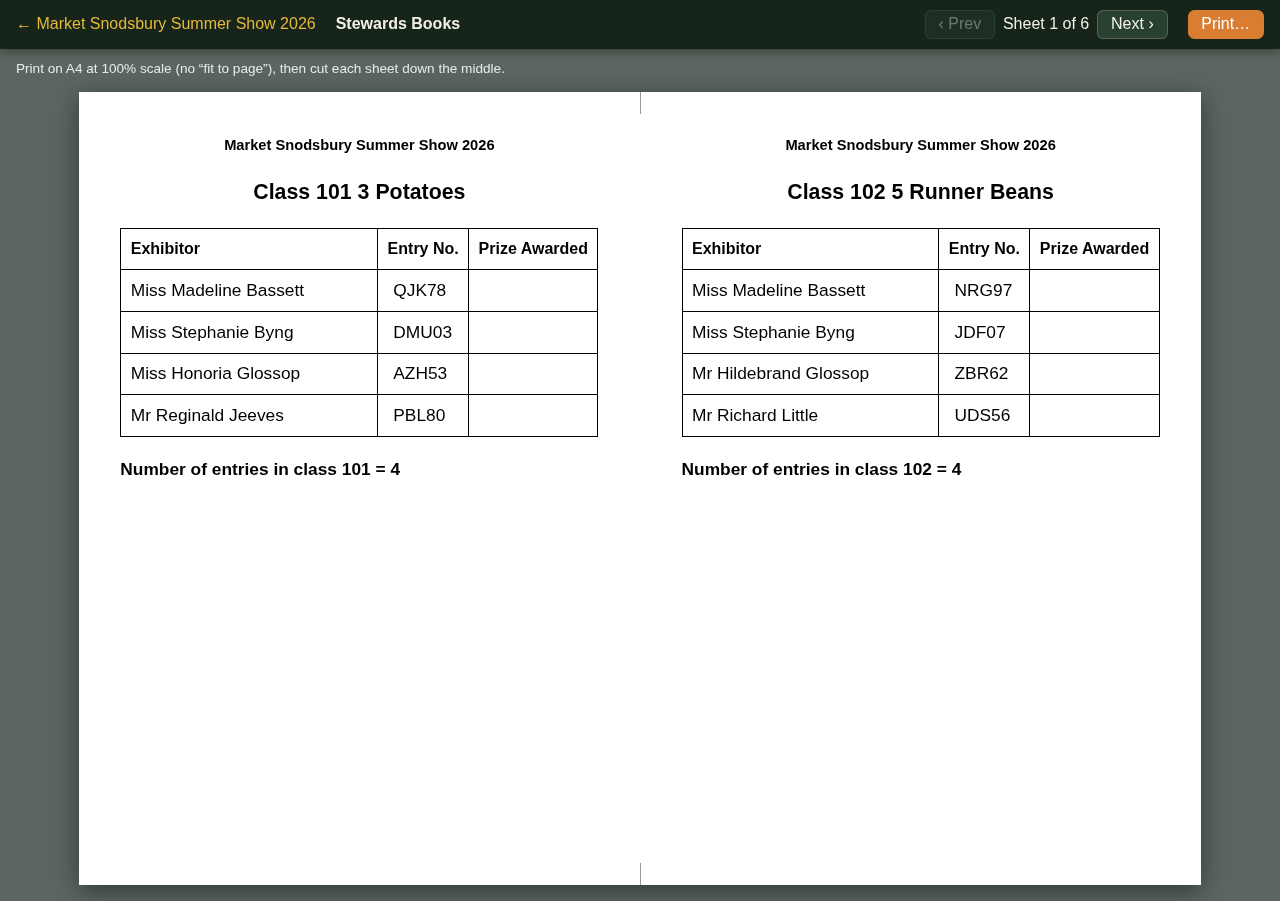
Note that these reports show the entries as they are when you print them. So if late entries come in, just print the new cards again, and the stewards books for the classes concerned.
On the day
Step 5: Enter the scores
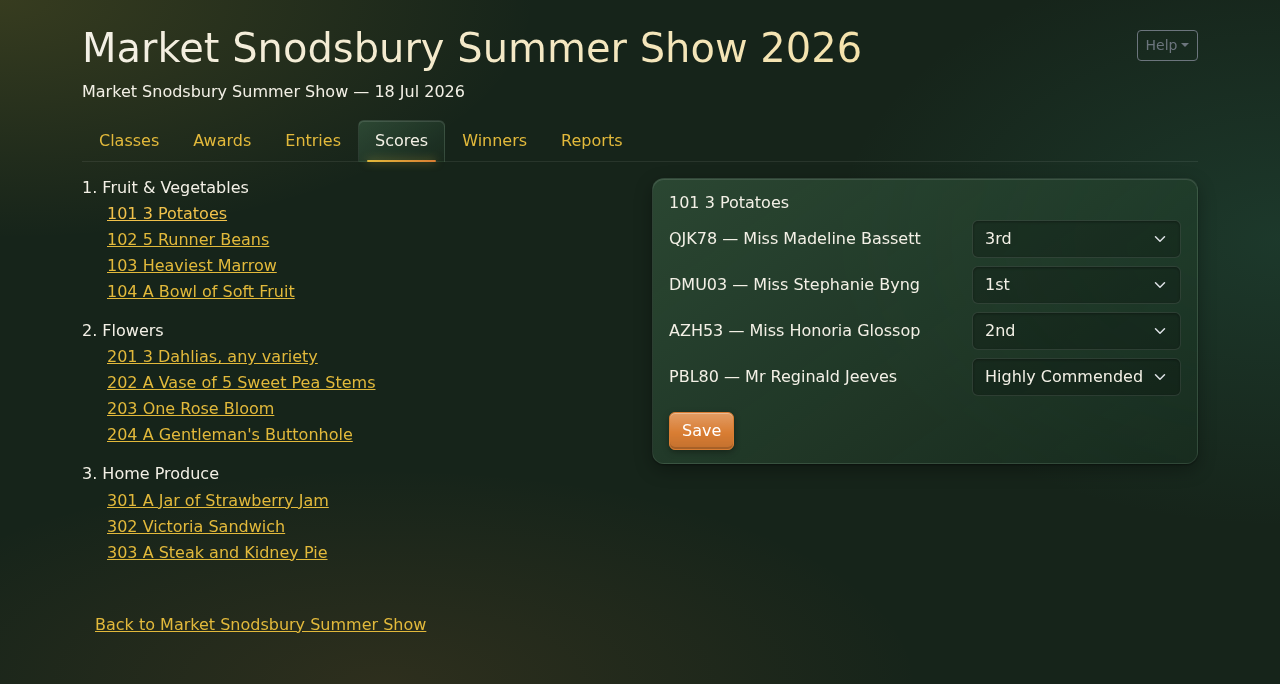
When the judging is done, take the stewards books and click the Scores tab. All the classes are listed on the left, numbered as in the schedule. Click a class, and its entries appear on the right, each with its entry number and the entrant's name.
Choose 1st, 2nd, 3rd or Highly Commended for each placed entry, leave the others blank, and click Save.
Then do the same for each of the other classes. A few things worth knowing:
- The judges don't have to award every place, and they can give the same place to more than one entry, e.g. two 2nd prizes, or several Highly Commendeds. That's all fine.
- Points are worked out for you, from the points you gave the class. Highly Commended doesn't score any.
- As on the Entries tab, you're asked before any unsaved changes are thrown away.
Step 6: Work out the winners
Click the Winners tab. It lists the awards, each with how it's won in brackets.
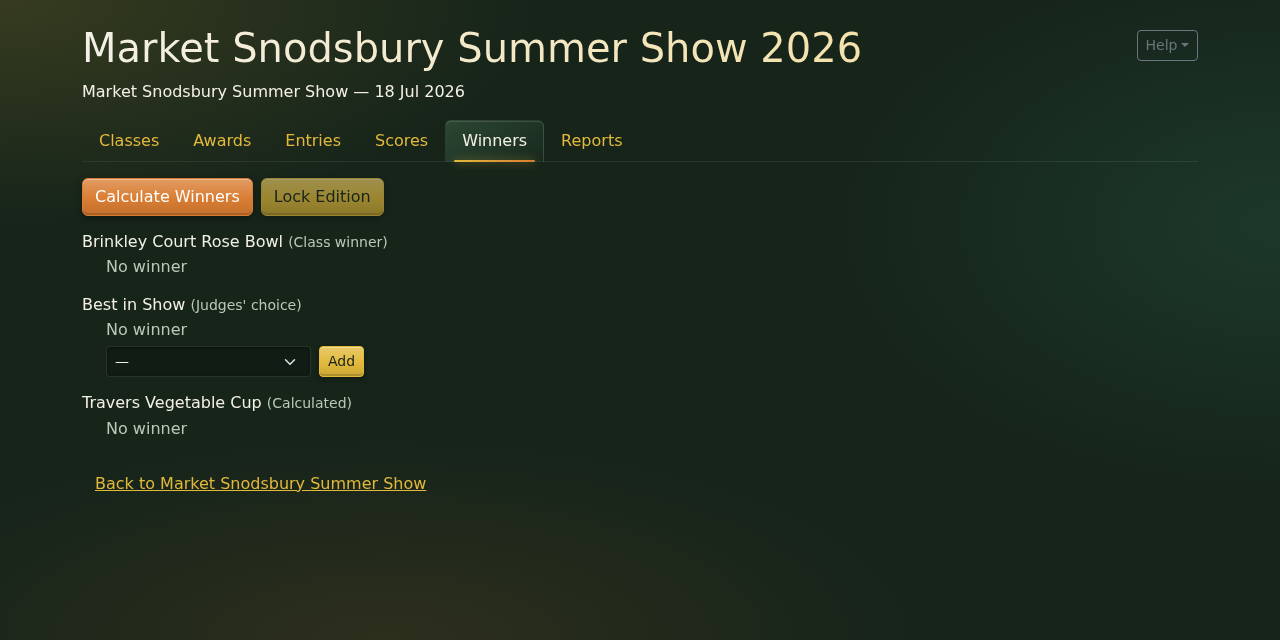
Once all the scores are in, click Calculate Winners. The system works out the winner of each Class winner and Calculated award, and shows them along with their points. If there's a tie, they share the award, unless the award's calculation says how to break ties.
It also works out each award's runner-up, shown in grey under the winner. For a Class winner award that's whoever came 2nd in the class, or 3rd, or Highly Commended, if nobody was placed 2nd. For a Calculated award it's the person with the next highest points, or, if two people tied for the award, whoever lost the tie-break.
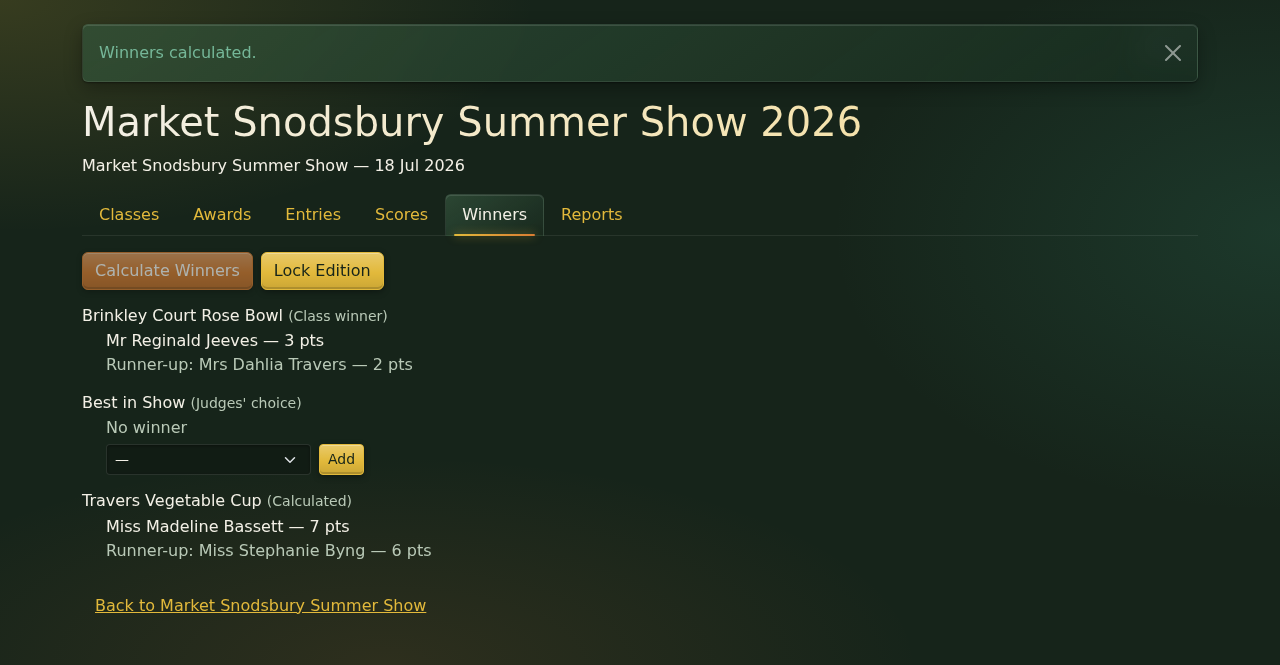
Calculate Winners is then greyed out, because the winners are up to date. If anything changes afterwards that could alter the results, e.g. you correct a score or add a late entry, the button comes back, so just click it again.
If a warning appears at the top instead of "Winners calculated.", one of the awards couldn't be worked out. Usually its calculator is missing, so that's one for whoever looks after the calculators (see Step 6 of Creating a show).
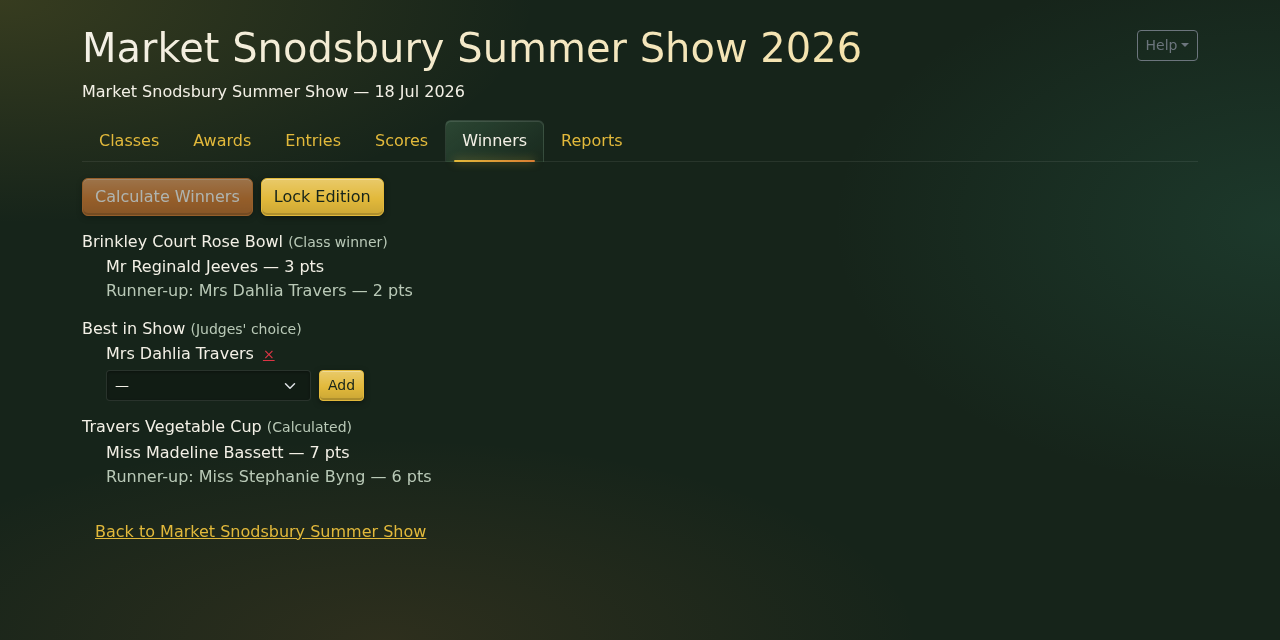
Judges' choice awards are filled in by hand. Choose the winner from the list under the award, and click Add. If you pick the wrong person, the red × next to their name removes them again.
Step 7: Lock the edition
When you're happy that all the results are right, click Lock Edition. It's only available once the winners are up to date.
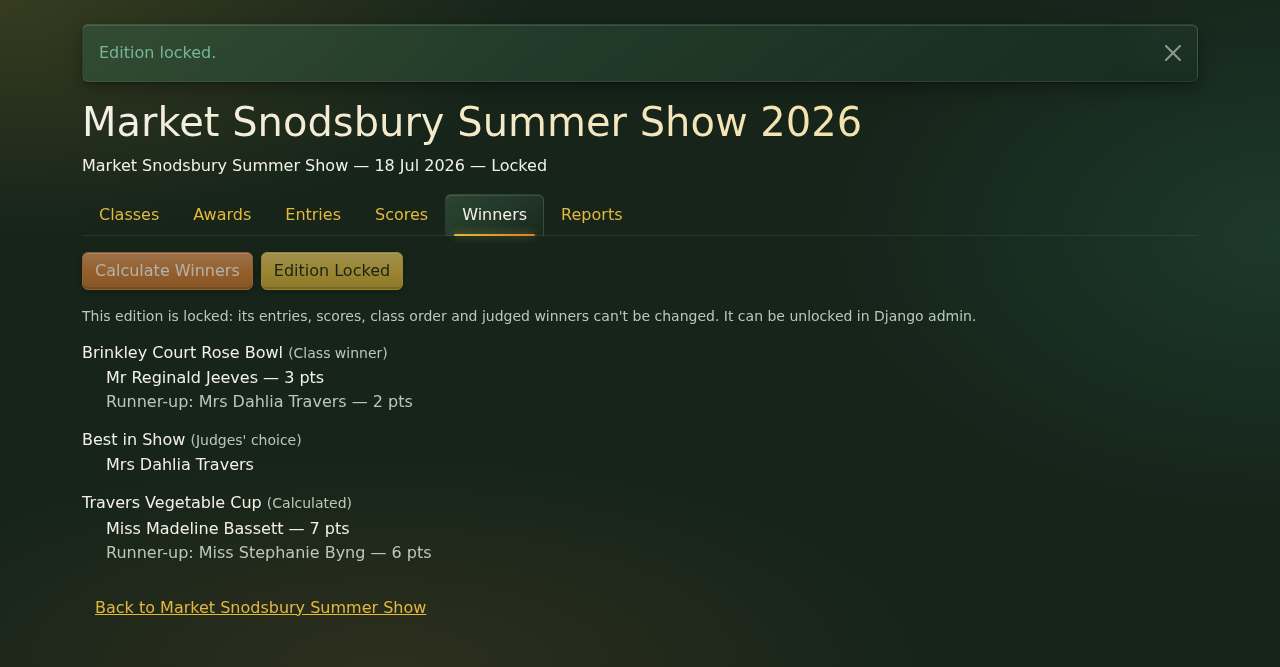
Locking stops the results being changed by accident: nobody can add or remove entries or entrants, change this edition's copy of anyone's details, change the scores, reorder the classes, or change the judges' choice winners. People's main records, on the Home page's People tab, can still be changed, as can other things such as award descriptions. Note that you can't unlock it again from here. That has to be done in Django admin (the system's behind-the-scenes administration pages), so please only lock it when you're sure.
After the judging
Step 8: Prize labels and reports
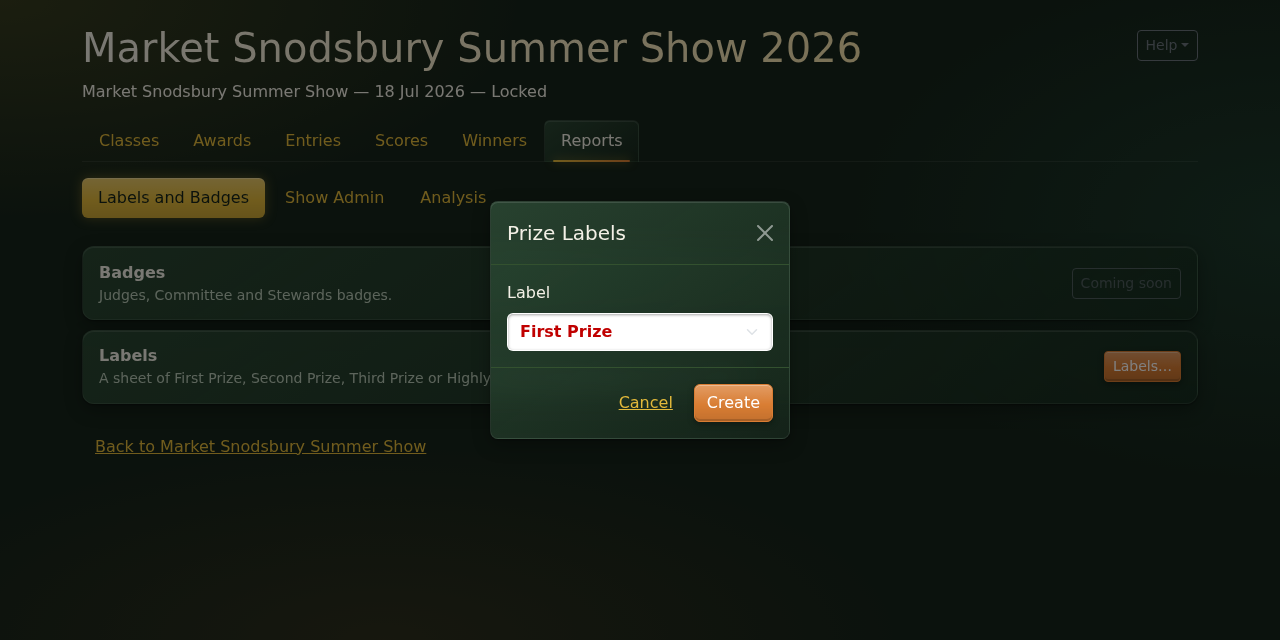
Prize labels are the stickers for the entry cards. On the Reports tab, click Labels and Badges, then Labels…. Choose First Prize, Second Prize, Third Prize or Highly Commended, and click Create.
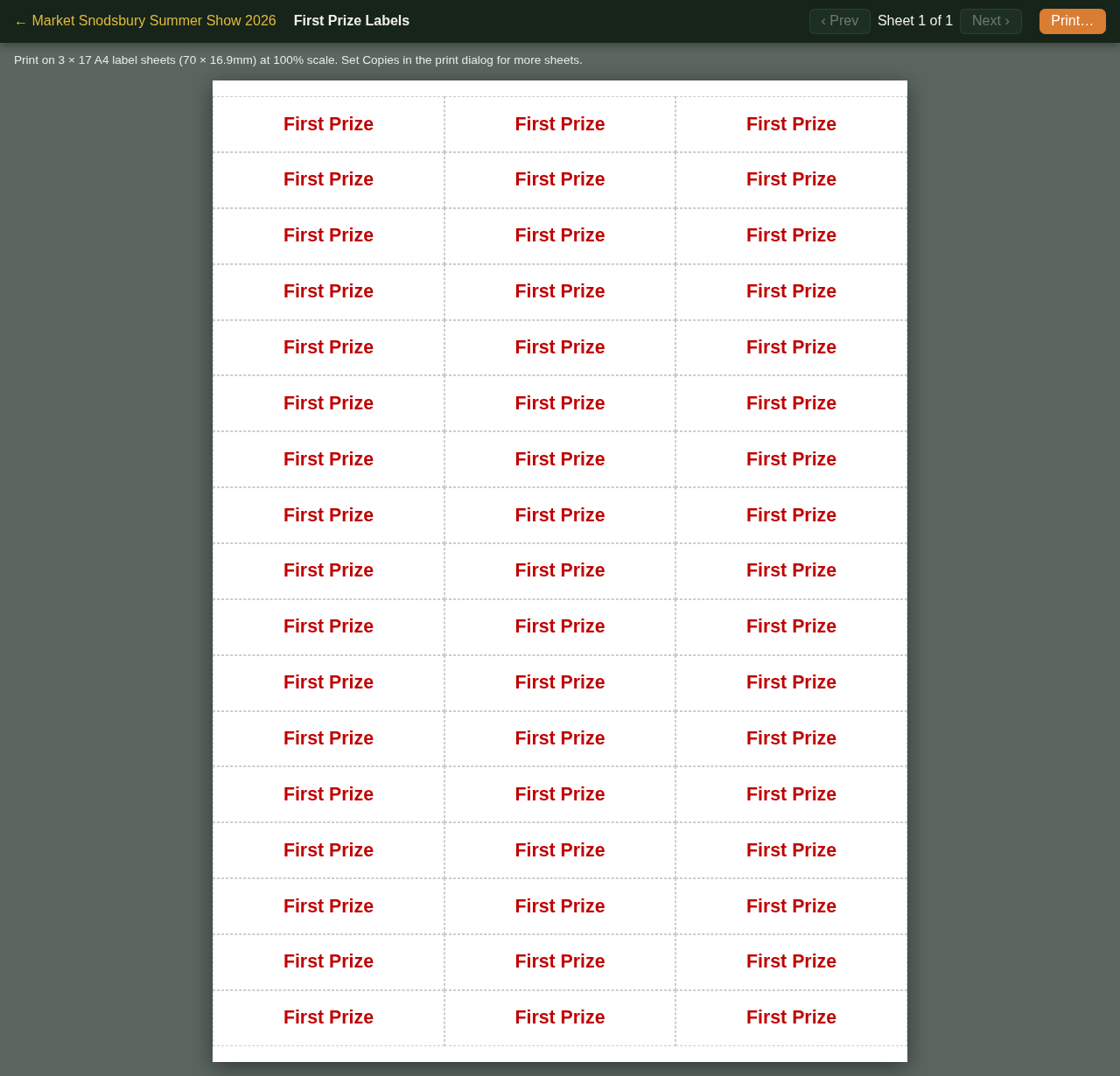
You get a sheet of identical labels, to print on A4 label sheets with 3 × 17 labels. Set the number of copies in the print window if you need more than one sheet.
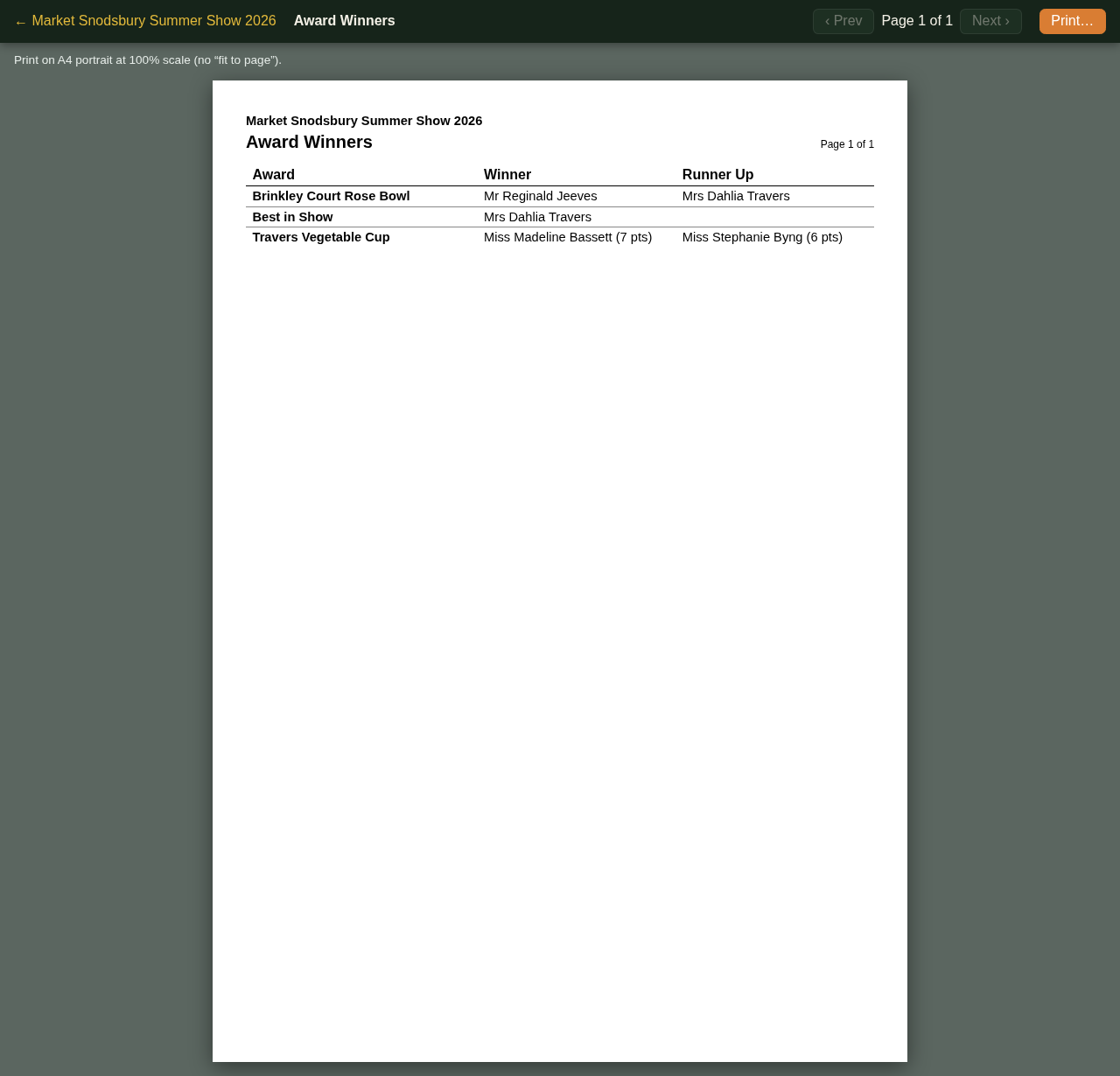
The Award Winners report, under Show Admin, lists every award with its winner and runner-up, in the same order as the Awards tab. Calculated awards show each person's points too. It's handy for the prize-giving, and for the engraver. If an award is shared, each person gets a line of their own.
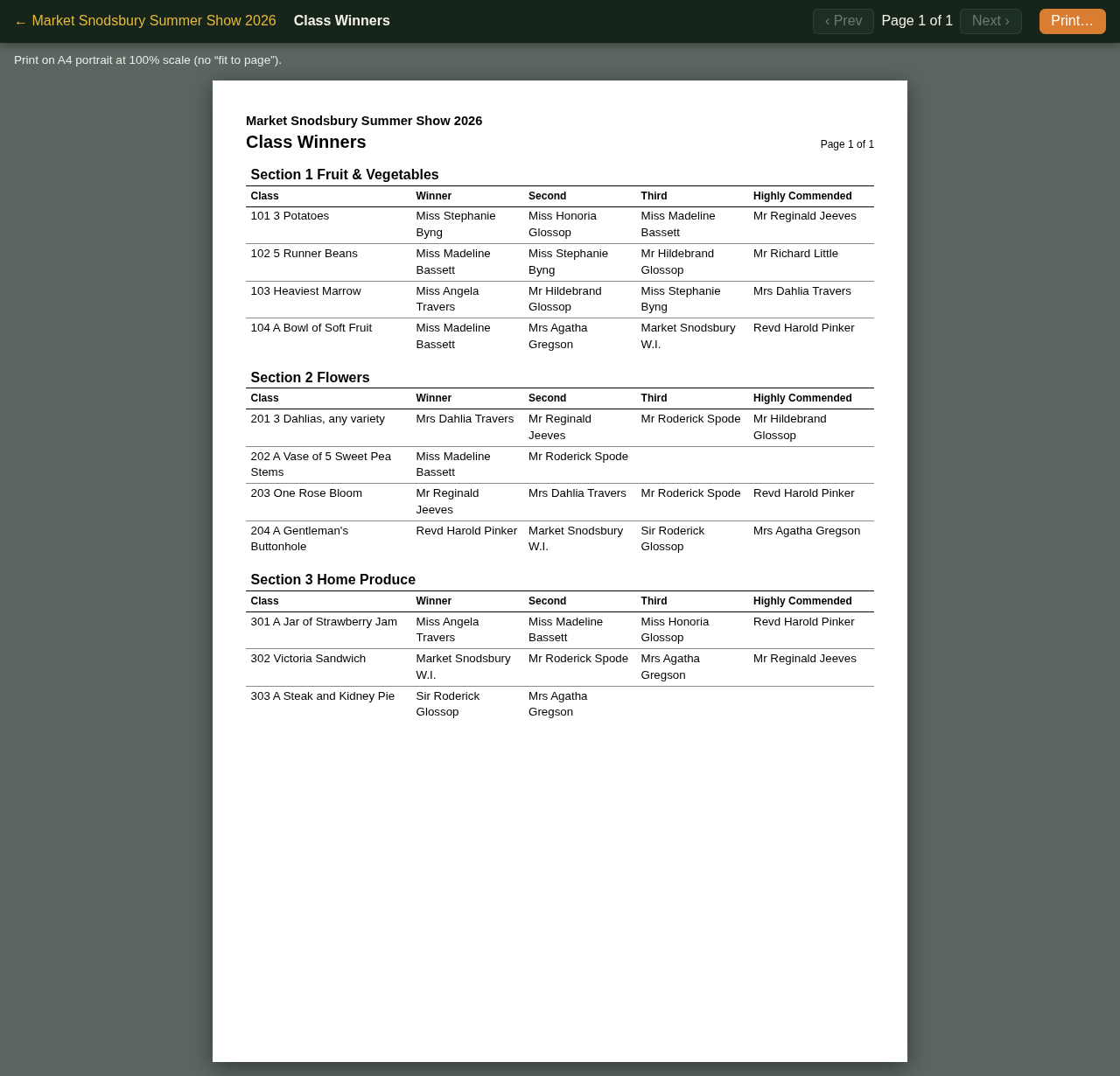
The Class Winners report, also under Show Admin, lists who came 1st, 2nd and 3rd in every class, and who was Highly Commended, section by section. Where a place was shared, everyone is listed together. A class nobody entered says "No entries". It's useful for a results board, or for the newsletter.
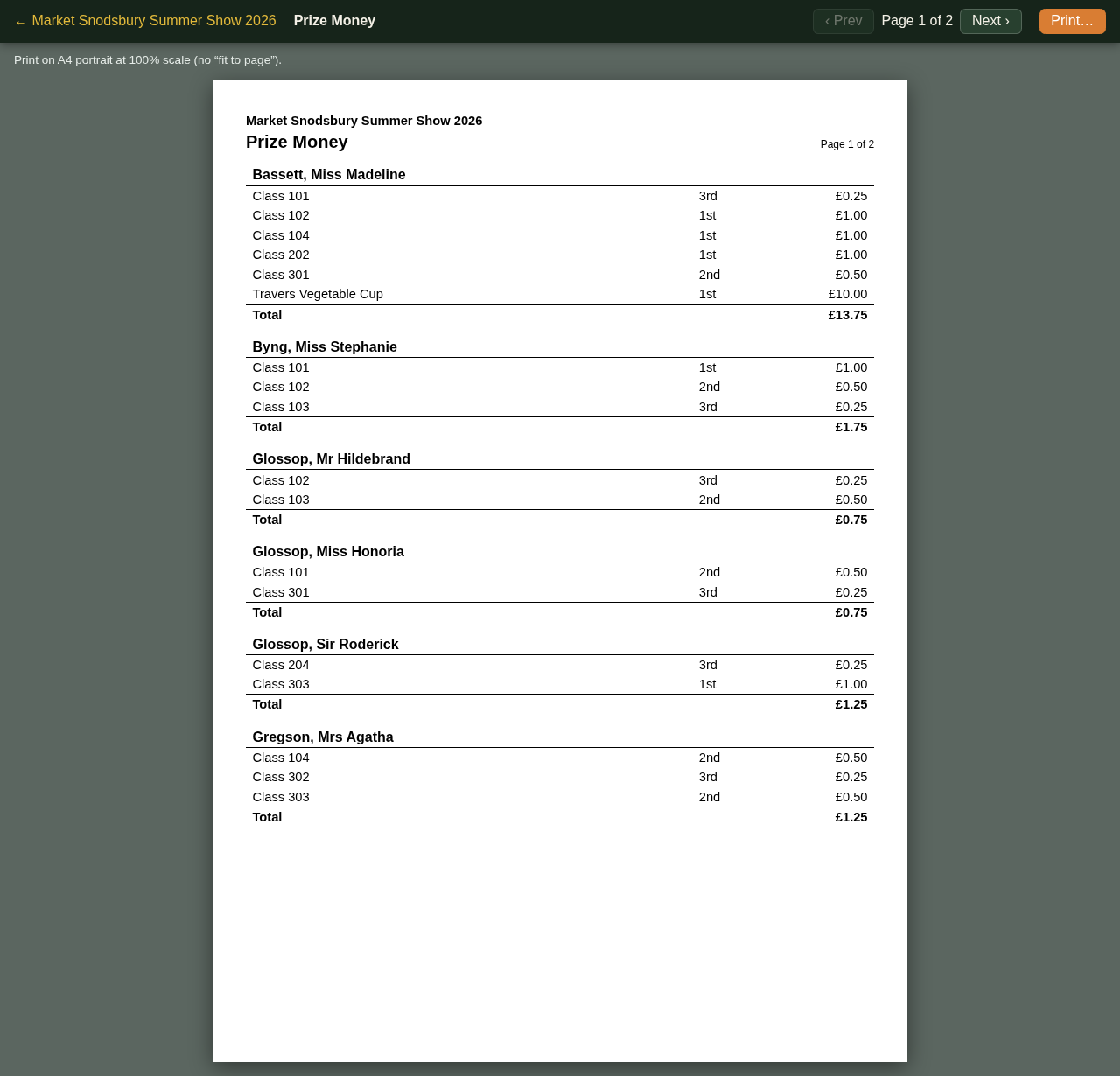
The Prize Money report, also under Show Admin, lists what each entrant has won, for classes and awards, with their total. It's just the thing for the treasurer when paying out.
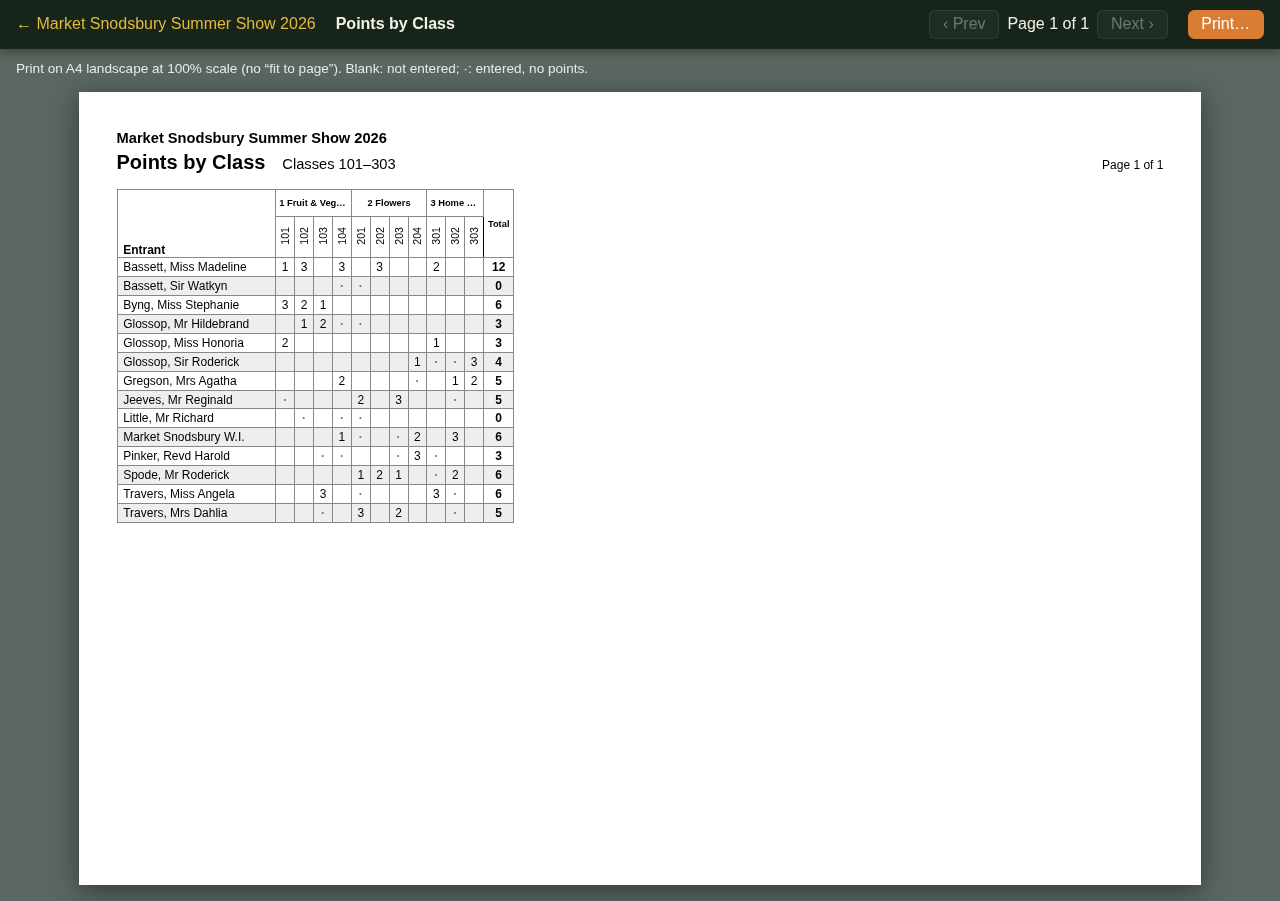
Under Analysis there are two reports for seeing how everyone did. Points by Class is a grid of every entrant's points in every class:
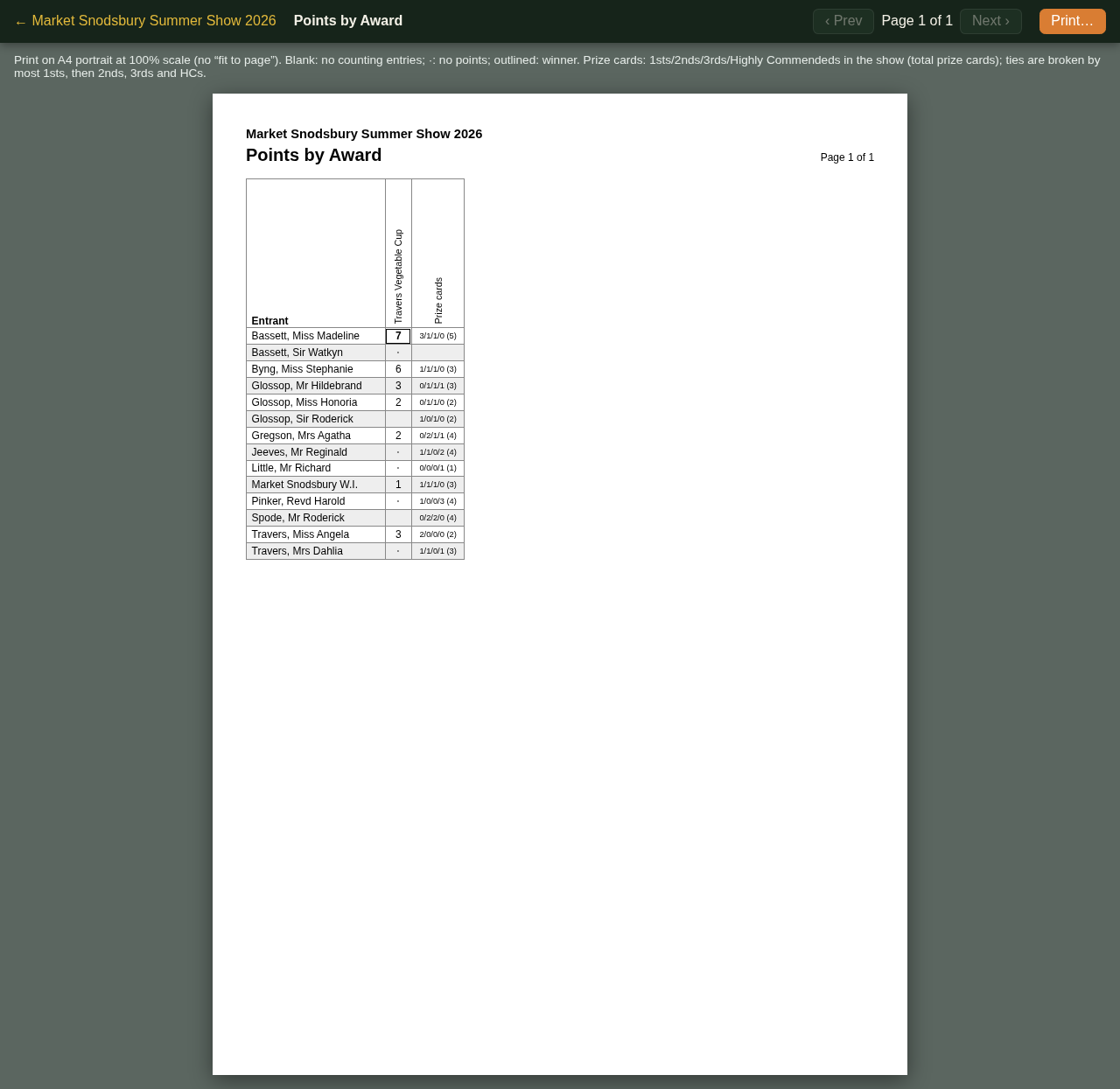
Points by Award shows everyone's points towards each calculated award, with the winner outlined. It's handy if anyone asks how close they came! The last column, Prize cards, shows how many 1sts, 2nds, 3rds and Highly Commendeds each person won in the whole show, then their total prize cards: Madeline's "3/1/1/0 (5)" is three 1sts, a 2nd and a 3rd, making 5 prize cards. If an award breaks ties by most 1sts, then 2nds, then 3rds, then Highly Commendeds, this shows who won a tie-break, and why.
Reports marked Coming soon aren't ready yet.
And next year
Next year, just go back to the show's Editions tab and create a new edition. Last year's edition stays as it was, results and all. Anyone who entered this year can be found with the search box on the Entries tab, so you won't need to type in their details again.